How to Compare Two Text Files and Find the Differences
Compare two text files line by line online, with git or in PowerShell. Why every line can show as changed, and how a diff finds the shortest edit.
By TheTextKit TeamPublished
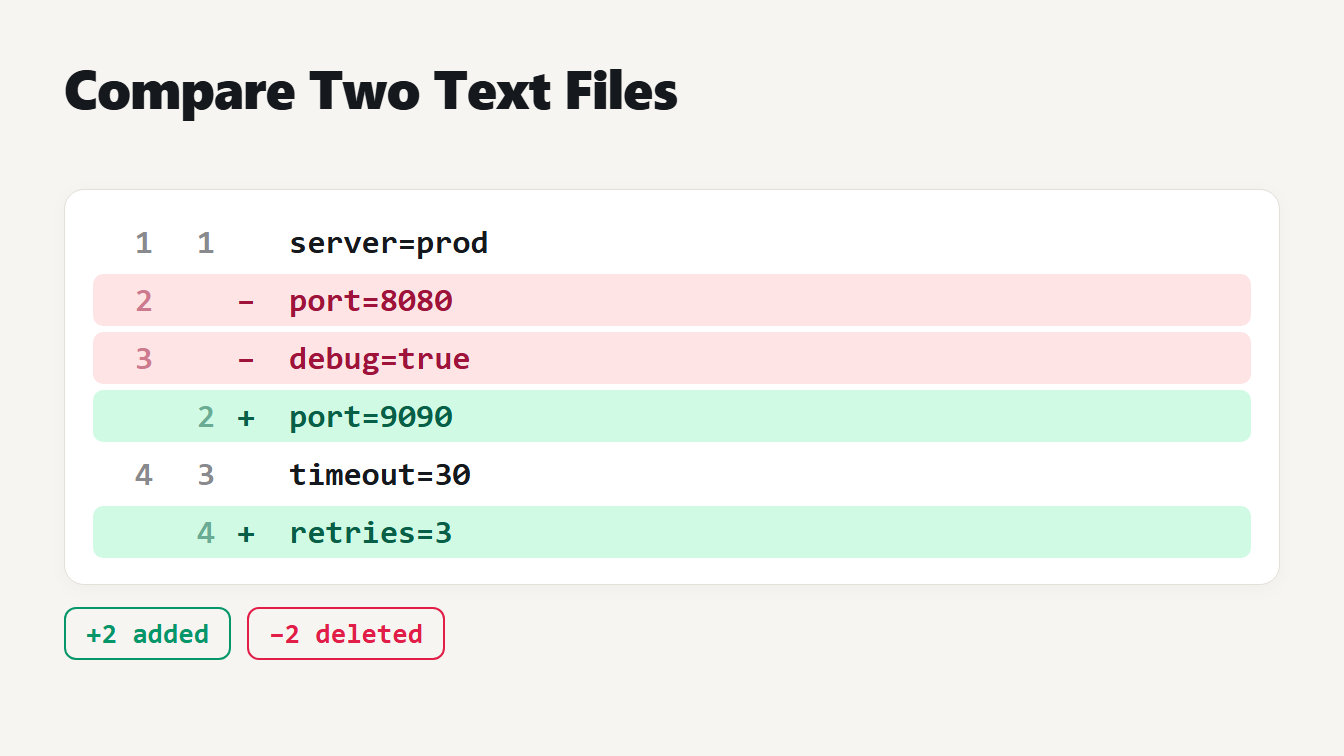
A card shows six numbered lines of a config file in a diff. The port line and the debug line are marked as deleted in red, the new port line and a retries line are marked as added in green, and two lines are unchanged. Two chips read 2 added and 2 deleted.
To compare two text files, paste both versions into a diff tool and read the marked lines. That gives you the answer in seconds, but the answer is only as good as the comparison behind it. We tested ours against Git and Python on thousands of inputs, found two real problems in an older version of our own tool, and fixed them. This guide explains how a diff works, what the common ways to compare text give you, and why two files that look identical can show hundreds of changes.
How to compare two text files online
- Open the Diff Checker.
- Paste the original text into the left box and the changed text into the right box.
- Choose the options you need: ignore_case or ignore_whitespace.
- Press Compare. The result lists every line with its line number in each text.
Here is a small example. The original file has four lines and the changed file has four lines:
| Original | Changed |
|---|---|
server=prod | server=prod |
port=8080 | port=9090 |
debug=true | timeout=30 |
timeout=30 | retries=3 |
The diff shows six lines. Two matching lines are context, two lines are deleted (port=8080, debug=true) and two are added (port=9090, retries=3). Git gave the same four changed lines for this pair.
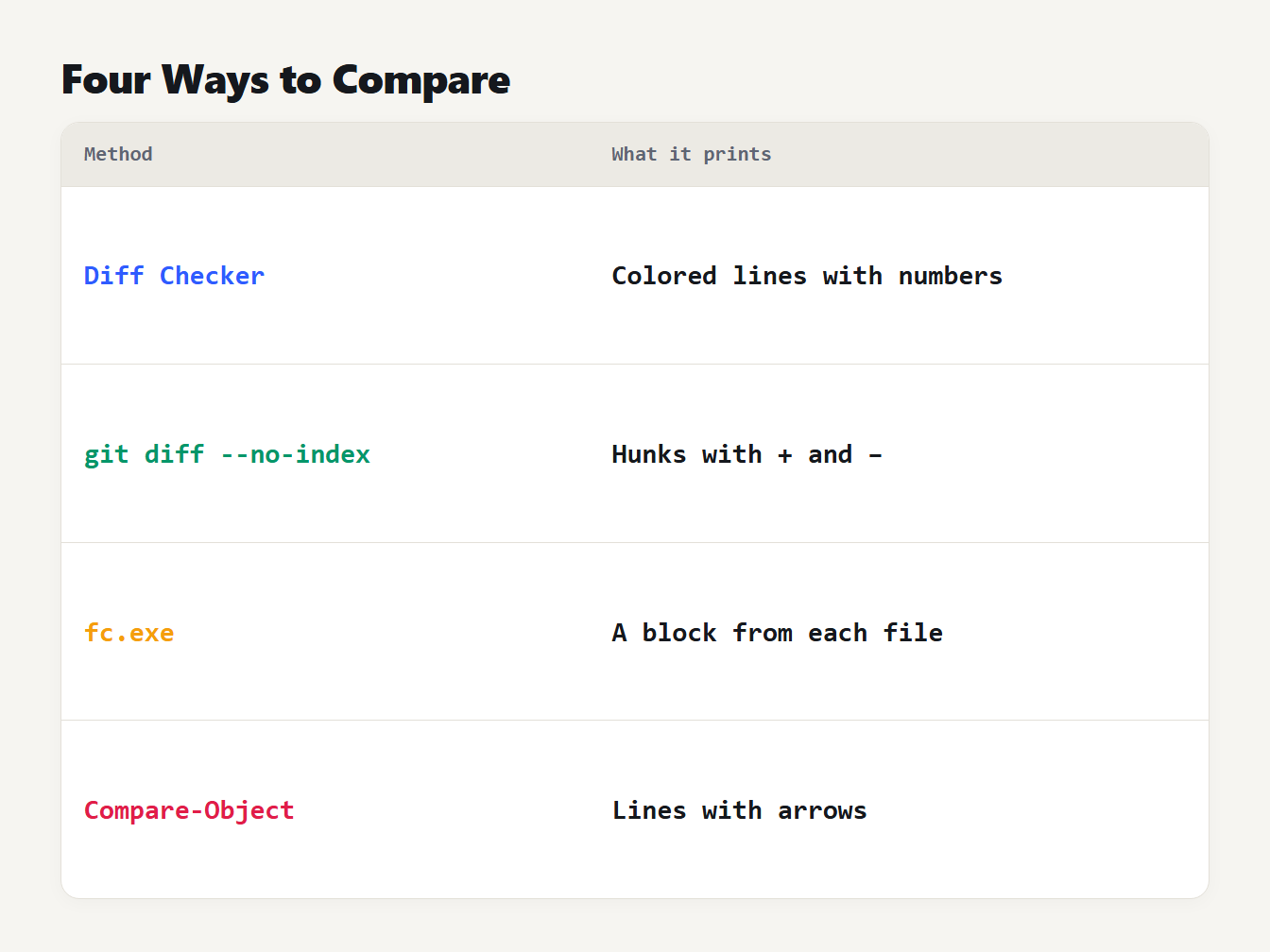
A table of four methods and what each prints for the same two files. The Diff Checker prints colored lines with numbers. Git diff prints hunks with plus and minus signs. The fc command prints a block from each file. Compare-Object prints lines with arrows.
Other ways to compare text files
You don't need a website. Three common options gave these results on the same pair of files:
git diff --no-index old.txt new.txtprints a hunk with a minus sign before deleted lines and a plus sign before added lines. It works on any two files, not only files in a repository.fc.exe old.txt new.txtis built into Windows. It prints the block of lines from each file where they differ. Typefc.exe, because plainfcis an alias for another command in PowerShell.Compare-Object (Get-Content old.txt) (Get-Content new.txt)lists only the differing lines, with an arrow showing which file each came from. It lists all four changed lines but not their order or position. On Linux and macOS,diff -u old.txt new.txtprints the same unified format that git uses.
A browser tool is the quickest when the text is in a document, an email or a chat and not in a file. Because it needs no installation, it also works on a locked-down work computer.
How a diff finds the differences
A diff looks for the longest set of lines that both texts share in the same order. This is the longest common subsequence. Every line outside that set is a change. The fewer lines it leaves out, the shorter the diff. That is what makes it a reliable way to compare two text files, whatever their size.
A simple way to build that answer is a table with one cell for each pair of lines, which was the method behind our tool until this update. It needs a table of n times m cells. Two files of 10,000 lines each need 100 million cells, which is why the old version took 10.9 seconds on them.
The better method is Eugene Myers' algorithm, published in Algorithmica in 1986. Its running time depends on the number D of changed lines, not on the size of the table, so two large files that are mostly the same compare very fast. The Git documentation says Myers is currently its default algorithm.
Why every line shows as changed
If a diff reports far more changes than you made, the cause is almost always one of three things.
- Line endings. Windows ends each line with CR and LF. Unix and macOS end it with LF. We saved the same 200 lines both ways and compared them with git: it reported 199 deleted and 199 added lines, 398 changes in total. Our old version gave the same 398. The 200th line was the only one equal, because it had no line ending. Git has the option
--ignore-cr-at-eolfor this, and it brought the count to zero. The Diff Checker now treats CRLF, LF and CR as the same, so it reports no differences. - Spaces at the end of a line or tabs against spaces. You can't see these, but a strict comparison does. The ignore_whitespace option skips spaces and tabs at the ends of lines and treats a run of spaces inside a line as one. Git's closest option is
-b, which the documentation describes as ignoring changes in the amount of whitespace. - Capitals.
Port=8080andport=8080are different lines. The ignore_case option makes them equal. The lines in the result keep your original text.
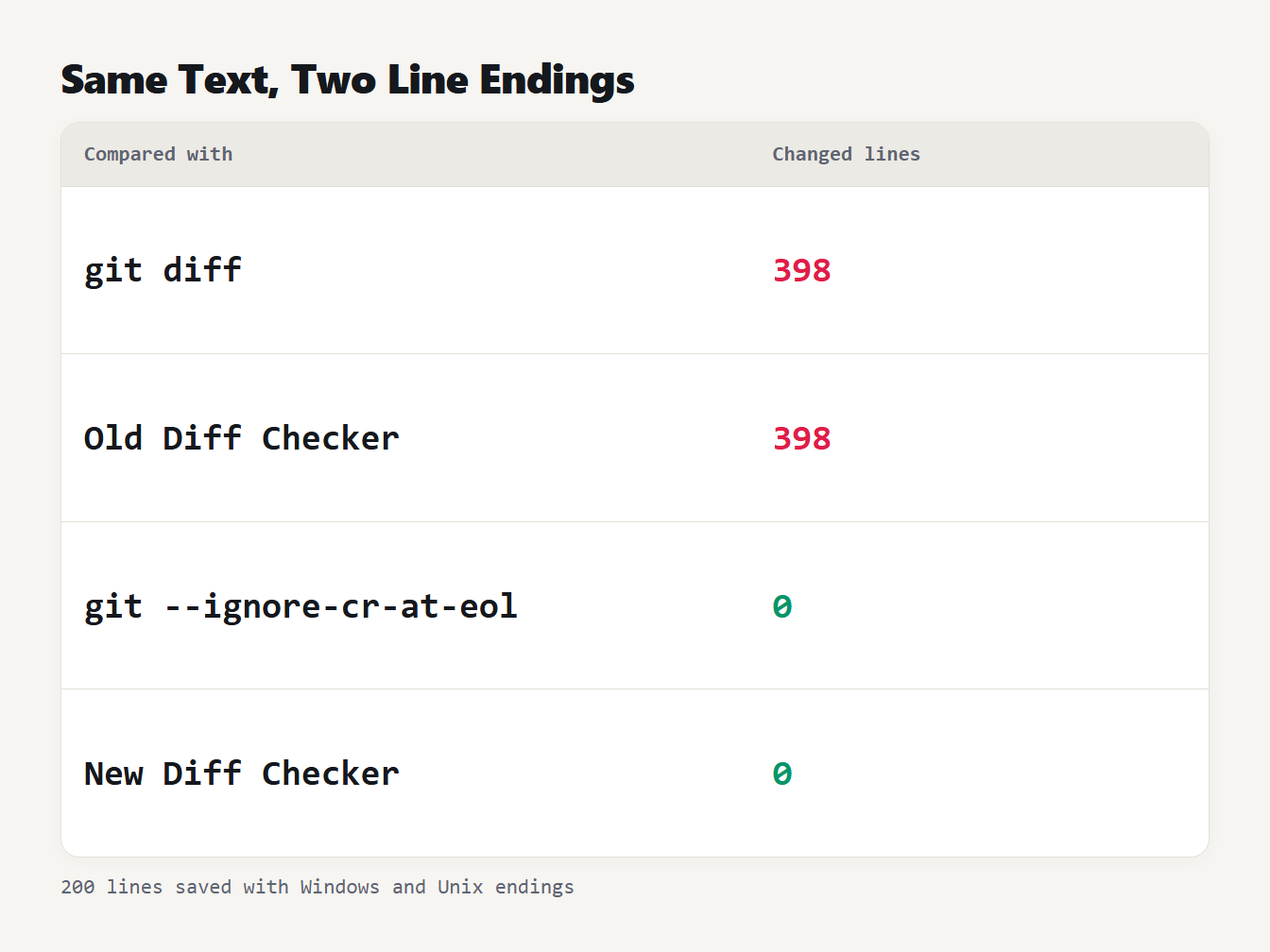
A table of four ways to compare the same 200 lines saved with Windows and Unix line endings. Plain git diff gives 398 changed lines. The old Diff Checker gives 398. Git with the ignore carriage return option gives 0. The new Diff Checker gives 0.
How fast is it on large files?
We timed the old method and the Myers method on the same files. In each, every 100th line was edited, so the number of changed lines grew with the file:
| Lines | Changed lines | Old method | New method |
|---|---|---|---|
| 1,000 | 20 | 131 ms | 2.3 ms |
| 2,000 | 40 | 360 ms | 4.6 ms |
| 4,000 | 80 | 1,125 ms | 11.8 ms |
| 8,000 | 160 | 5,725 ms | 19.8 ms |
| 10,000 | 200 | 10,850 ms | 31.5 ms |
The old method got three to five times slower each time the size doubled. A file of 100,000 lines with 40 edits took 87 milliseconds with the new one. These are timings from one computer, so yours will differ, but the pattern will not.
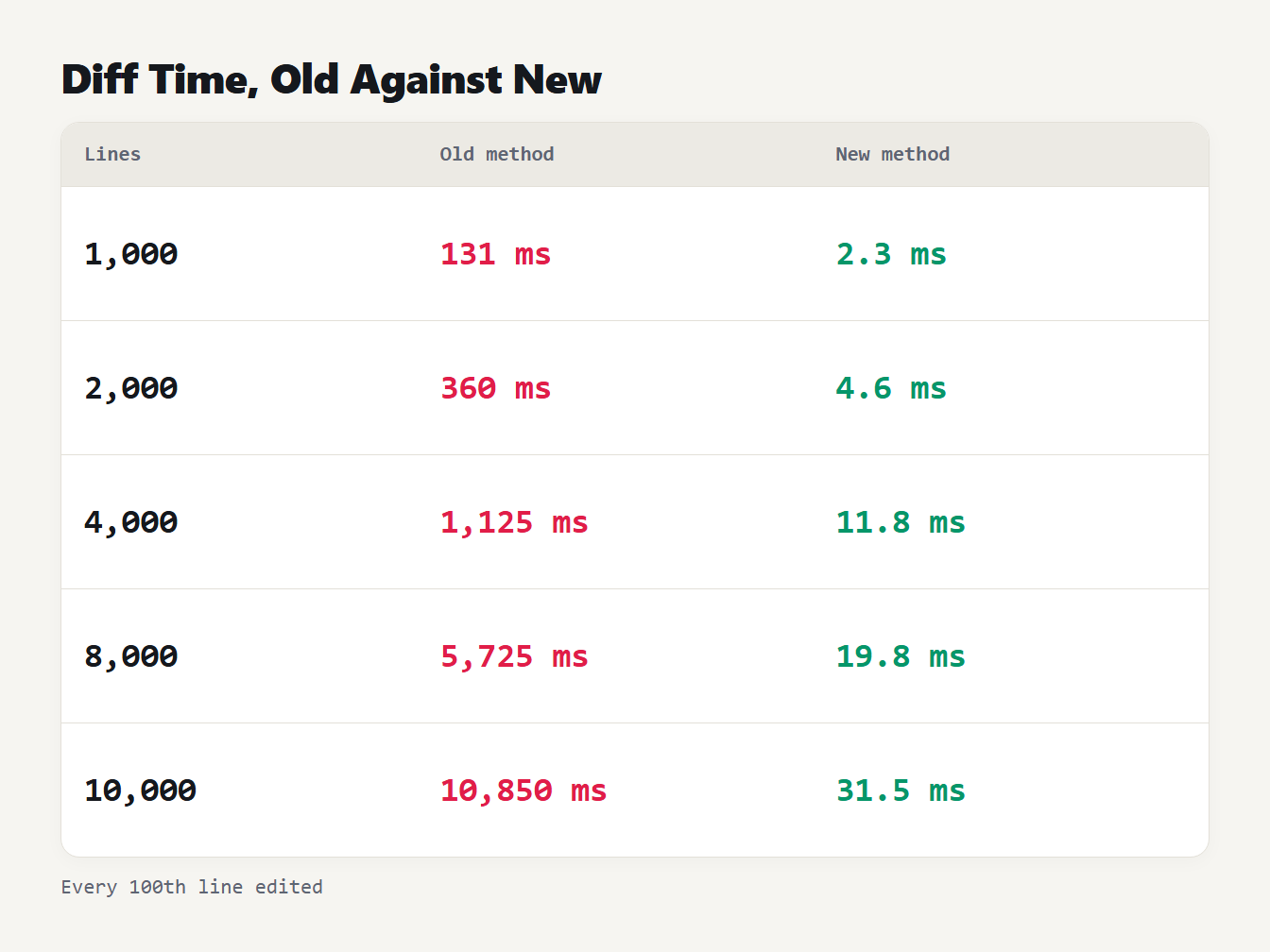
A table of five file sizes from 1,000 to 10,000 lines. The old method takes 131, 360, 1,125, 5,725 and 10,850 milliseconds. The new Myers method takes 2.3, 4.6, 11.8, 19.8 and 31.5 milliseconds.
There is a limit. Time grows with the number of changes, so two texts with nothing in common are the worst case. We measured 108 milliseconds for 1,000 lines that were all different and 802 for 3,000. If the texts differ in more than 20,000 lines, the tool stops with a message and asks you to compare smaller parts, so the page can't freeze.
Is the result the shortest possible diff?
We generated 400 pairs of random line lists, each 10 to 49 lines long and made from only seven different lines, so that many lines repeat. That makes the choice of matches ambiguous. Then we counted the changed lines in each answer:
| Compared with | Same number of changes as our tool |
|---|---|
| git diff (default) | 400 of 400 |
| git diff --minimal | 400 of 400 |
| Python 3.14 difflib | 66 of 400 |
Python's difflib was longer in the other 334 pairs. That isn't a bug: the difflib documentation says its output makes no claim to be minimal, because minimal diffs are often counter-intuitive for people. If you need the fewest changes, use Myers. If you need a patch that reads like prose, a different algorithm can read better. Git offers patience and histogram for that.
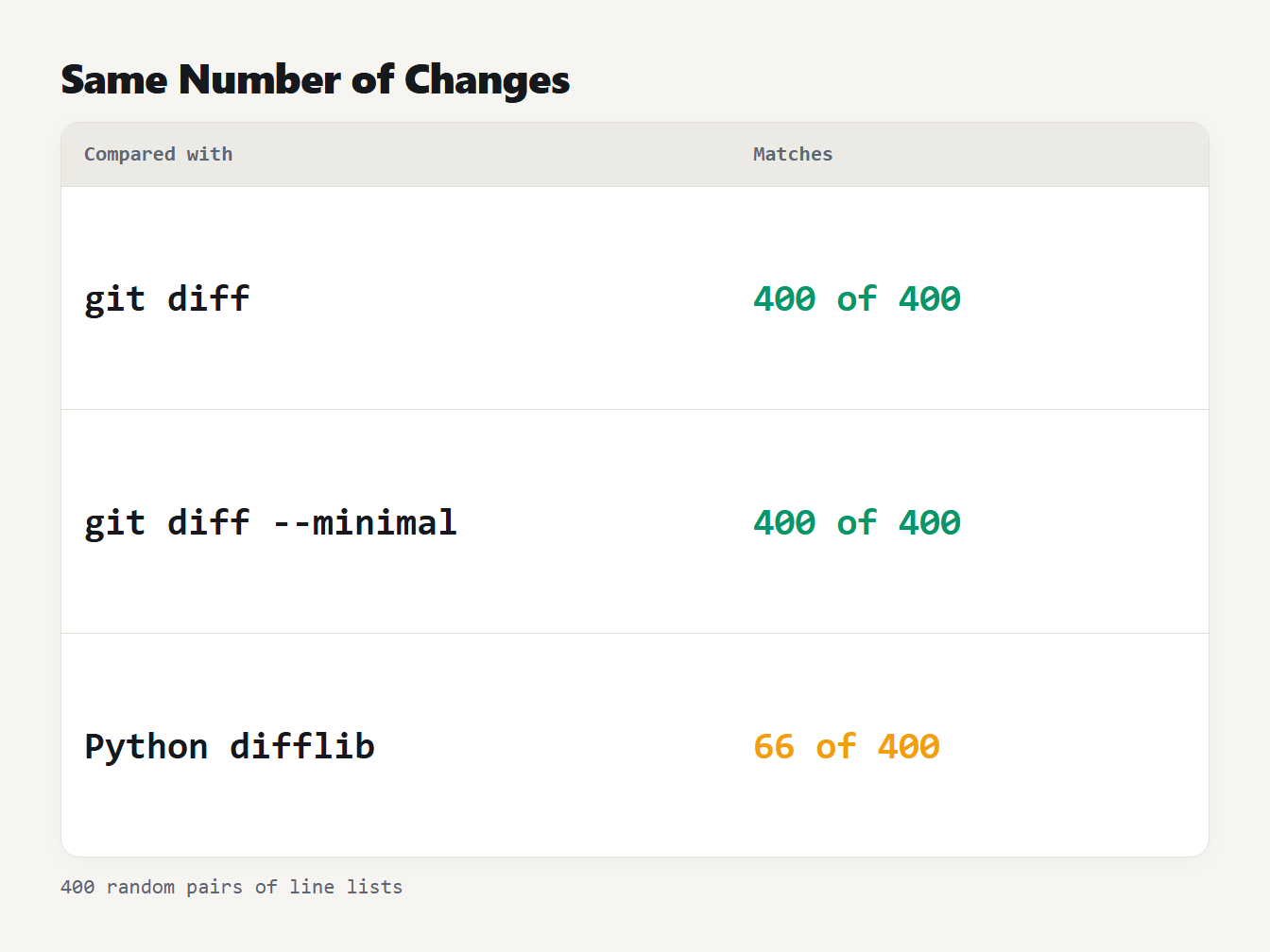
A table of three comparisons on 400 random pairs of line lists. Git diff default matched the tool's number of changes in 400 pairs. Git diff with the minimal option matched in 400 pairs. Python difflib matched in 66 pairs and was longer in the other 334.
What a line diff can't do
- It compares whole lines. Change one word in a long paragraph and the whole paragraph shows as deleted and added. Git's
--word-diffoption then compares the words inside the changed lines, and for prose that is easier to read. - It doesn't know that a line moved. A paragraph moved to another place shows as one deletion and one addition.
- It can't read structure. Two JSON files with the same data in a different order or layout will not match. Format both with the JSON Formatter first, then compare.
- Blank lines and duplicates count. If you only care about the unique lines, use Remove Duplicate Lines on each text first.
To change many lines at once after you've spotted a pattern, the Find and Replace tool is the next step. If you need a pattern for it, our regex cheat sheet lists the syntax.
Frequently asked questions
How do I compare two text files online?
Paste the original text into the left box and the changed text into the right box of a diff tool, then press Compare. Lines only in the original are marked as deleted, lines only in the new text are marked as added, and everything else is shown as unchanged context.
Why does every line show as changed when the text looks the same?
The usual cause is line endings. Windows ends a line with two characters, CR and LF, and Unix ends it with LF only. A strict comparison sees different lines. In our test, git reported 398 changed lines for two copies of the same 200-line file.
Can I compare two files in PowerShell without extra software?
Yes. Compare-Object (Get-Content old.txt) (Get-Content new.txt) lists the lines that differ, with arrows showing which file each line came from. It does not keep line order or show unchanged lines, so a real diff gives more context.
What is the difference between a line diff and a word diff?
A line diff marks whole lines as added or deleted, so a one-word edit shows as one deleted and one added line. A word diff then compares the words inside the changed lines. Git offers this with the word-diff option.
Does a diff tool upload my text?
Not ours. The comparison runs in your browser and nothing is sent to a server, so it is safe for private drafts and configuration files. Check any other tool for this before pasting confidential text.
Compare your texts now
Paste both versions into the Diff Checker, switch on the options you need and read the line numbers. If everything shows as changed, check the line endings and spaces first, because that is where most false differences come from.