How to Remove Duplicate Lines From Text: 5 Ways That Work
Remove duplicate lines from text with a free tool, Excel, PowerShell, sort or awk. See which methods keep your order, ignore case and miss trailing spaces.
By TheTextKit Team
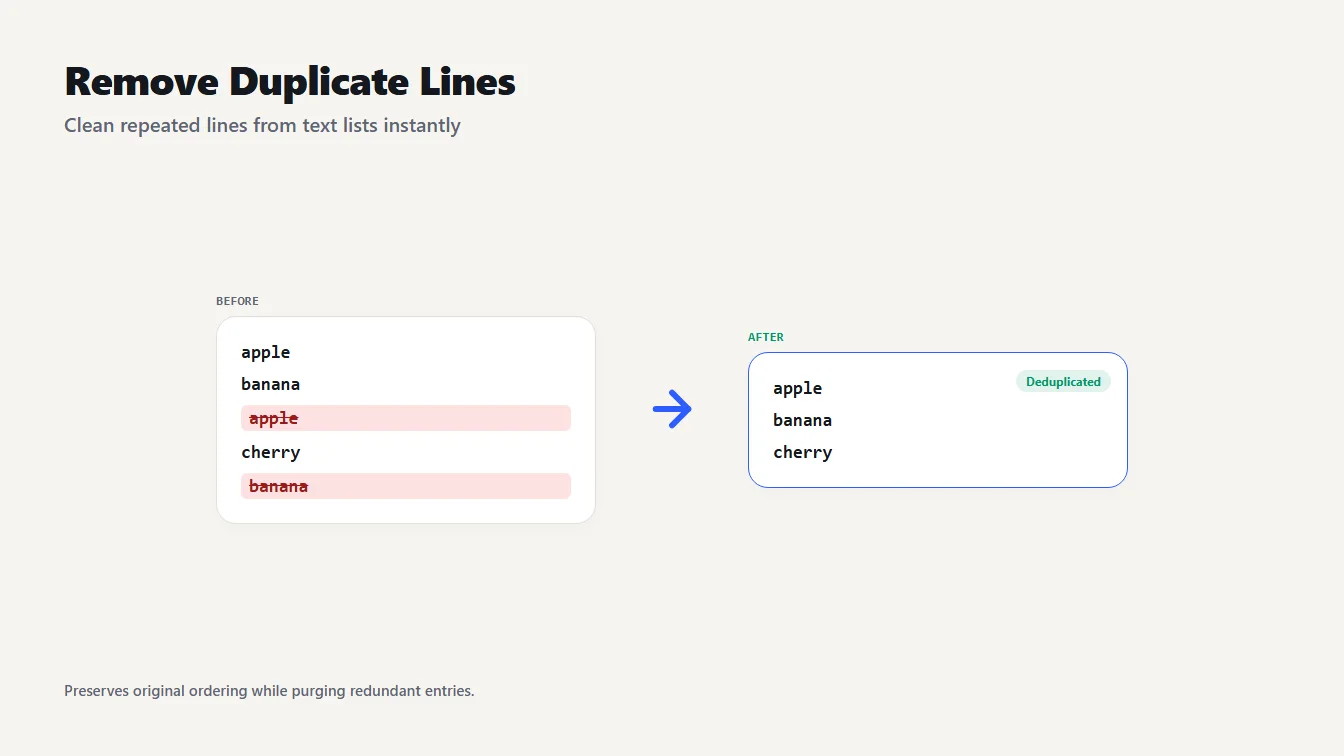
A five line list with repeated apple and banana lines is cleaned into a three line list that keeps the first copy of each line.
You paste a list of keywords, URLs or email addresses and half of them are repeats. To remove duplicate lines from text, keep the first copy of each line and drop the rest. The fastest way is the Remove Duplicate Lines tool: paste the list, check the counts and copy the result, with your original order intact.
The catch is that "duplicate" means different things to different tools. Some ignore capital letters, some sort your list as a side effect, and almost all of them treat a trailing space as a real difference. Below are five methods, what each one does to the same sample list, and how to get the result you wanted.
Remove duplicate lines from text in three steps
Here is the short version.
- Paste your list into the Remove Duplicate Lines tool, one item per line.
- Read the counters. The tool shows how many unique lines are left and how many duplicates it removed.
- Copy the result.
The tool keeps the first occurrence of each line and drops later repeats, so your order never changes. It runs in your browser, so nothing you paste is uploaded. Two details matter. The match is exact: "Apple" and "apple" count as different lines, and so do "apple" and "apple " with a trailing space. And an empty line counts as a line too, so if your list has three blank lines, one survives.
What counts as a duplicate?
Every example in this article uses the same nine-line sample list: apple, banana, apple, Cherry, banana, cherry, "apple " (with a trailing space), date, and one empty line. I ran it through each method for real. The results differ more than you might expect.
| Method | Order of result | Treats Cherry and cherry as | Lines left |
|---|---|---|---|
| Remove Duplicate Lines tool | Original | Different | 7 |
| PowerShell Select-Object -Unique | Original | Different | 7 |
| awk '!seen[$0]++' | Original | Different | 7 |
| sort -u | Sorted | Different | 7 |
| sort -u -f | Sorted | The same | 6 |
| PowerShell Sort-Object -Unique | Sorted | The same | 6 |
Two things stand out. The three methods that keep your order all treat capital letters as meaningful, and the three that sort also decide for you whether case counts. And the line with the trailing space survived in every row, because none of these methods trims anything.
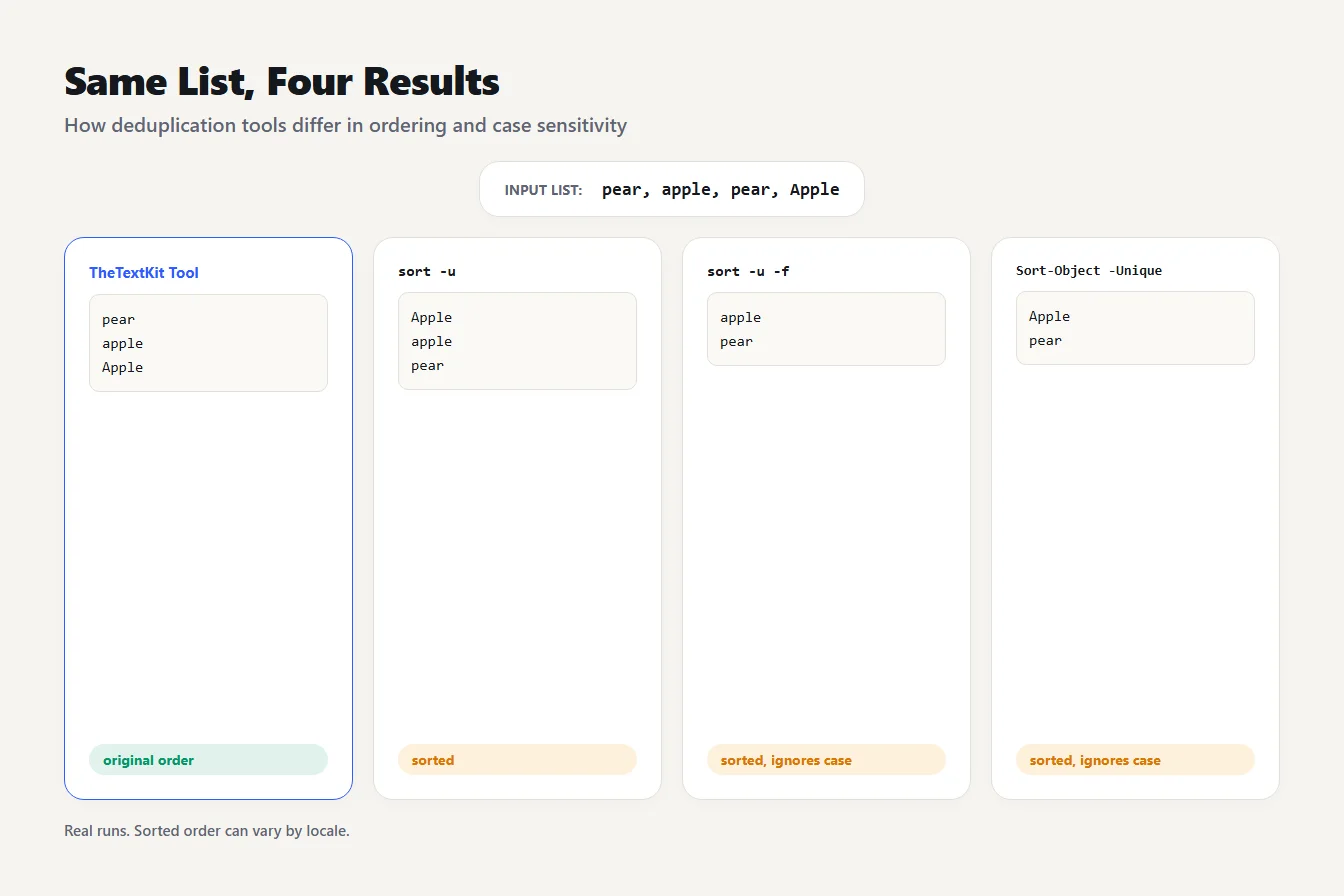
The list pear, apple, pear, Apple run through the Remove Duplicate Lines tool, sort -u, sort -u -f and Sort-Object -Unique, showing different order and case results.
Make duplicates match: trim spaces and ignore case
Exact matching is predictable, but real lists are messy. Two cleanup passes fix most of it before you remove duplicate lines from text.
First, run the list through the Whitespace Remover, which trims each line and collapses runs of spaces, so "apple " becomes "apple". Second, if capital letters shouldn't matter, convert the list to lowercase with the Case Converter. Then run the Remove Duplicate Lines tool.
On the sample list that takes nine lines down to four: apple, banana, cherry, date. Skip the lowercase step and you get five: apple, banana, Cherry, cherry, date. The Whitespace Remover also trims the empty line at the end, which is why the blank line is gone. Lowercasing replaces your original capitalization, so keep a copy if "Cherry" mattered.
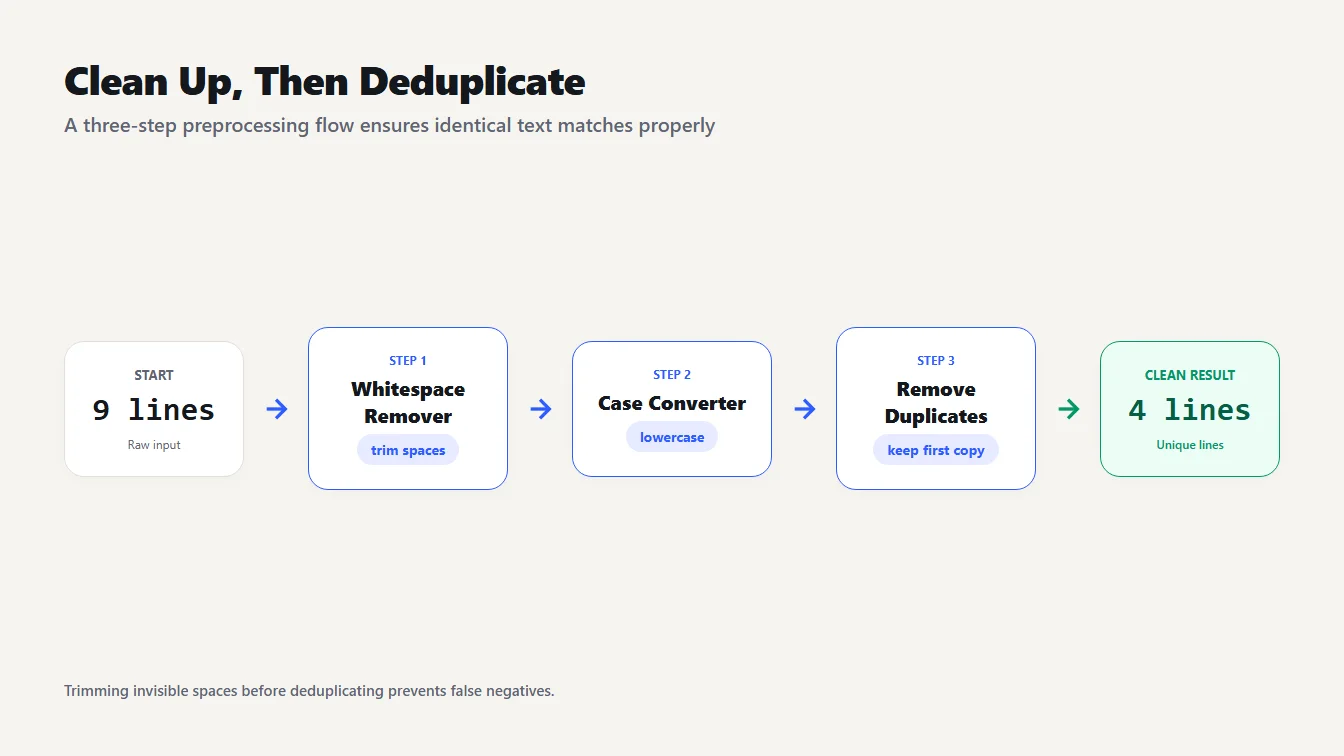
A three step workflow using the Whitespace Remover, Case Converter and Remove Duplicate Lines tools that takes a nine line list down to four unique lines.
Worked example: cleaning a keyword list
Keyword lists go wrong most often, because the same phrase gets exported in slightly different forms. Here is a ten-line list. The fourth line has a trailing space.
seo tools
SEO Tools
free seo tools
seo tools
text tools
free seo tools
Text Tools
word counter
word counter
SEO tools
Run it straight through the Remove Duplicate Lines tool and you get eight lines. Only the two exact repeats, "free seo tools" and "word counter", disappear. "SEO Tools", "SEO tools" and "seo tools " all stay. Trim first and the count drops to seven, because "seo tools " now matches "seo tools". Trim and lowercase, and it drops to four: seo tools, free seo tools, text tools and word counter.
So the same ten lines can mean eight, seven or four keywords, depending on one question: do capital letters and trailing spaces count? For keyword research they usually shouldn't, which is why the cleanup comes first.
Remove duplicate lines in Excel, PowerShell and the terminal
If the list already lives in a spreadsheet or a file, you can clean it where it is.
In Excel
Paste the list into one column, one line per cell. Then select it, open the Data tab and choose Remove Duplicates. Microsoft's page on how to filter for unique values or remove duplicate values says Excel keeps the first occurrence. It also permanently deletes the rest, so copy the original to another sheet first. Duplicates are judged on what a cell displays, not what it stores, so two dates formatted differently count as different.
If you'd rather not delete anything, the UNIQUE function returns the distinct values from a range in a new place, as in =UNIQUE(A2:A100). It is available in Excel for Microsoft 365, Excel 2021 and Excel 2024, and the results spill into the cells below. Neither page says whether capital letters count, so test two lines such as Apple and apple before you trust it on a long list.
In PowerShell
PowerShell has two cmdlets that look alike and behave differently. Select-Object -Unique keeps your order and, according to Microsoft's documentation, is case-sensitive by default. Sort-Object -Unique sorts the output and, per its own page, ignores case. On the sample list the first returned seven lines in the original order and the second returned six sorted lines.
Get-Content list.txt | Select-Object -Unique | Set-Content clean.txt
Add -Encoding utf8 to Set-Content if your list has accented characters, since Windows PowerShell 5.1 otherwise writes the system's ANSI code page. PowerShell 7.4 and later also give Select-Object a -CaseInsensitive switch.
Which spelling survives a case-insensitive pass can surprise you. In Windows PowerShell 5.1, the list pear, apple, pear, Apple came back from Sort-Object -Unique as Apple, pear. Don't count on the first spelling winning.
With sort, uniq and awk
On Linux, macOS or Git Bash, sort -u list.txt sorts the lines and prints one copy of each. Add -f to ignore case. In my test, -f kept "Cherry" and dropped "cherry", and the pear, apple, pear, Apple list became apple, pear.
uniq on its own is a trap. The GNU manual says it detects repeated lines only when they are adjacent. Feed it the three lines a, b, a and it prints all three. Sort first, as in sort list.txt | uniq, and you get a and b, the same as sort -u.
When you need your original order, use awk:
awk '!seen[$0]++' list.txt
It prints a line only the first time it appears. The seen[$0] counter starts at zero, the ++ raises it after each check, and the leading ! makes the test true only while the count is still zero. For a case-insensitive version, swap $0 for tolower($0). On the sample list that returned apple, banana, Cherry, "apple ", date and the empty line, still in order.
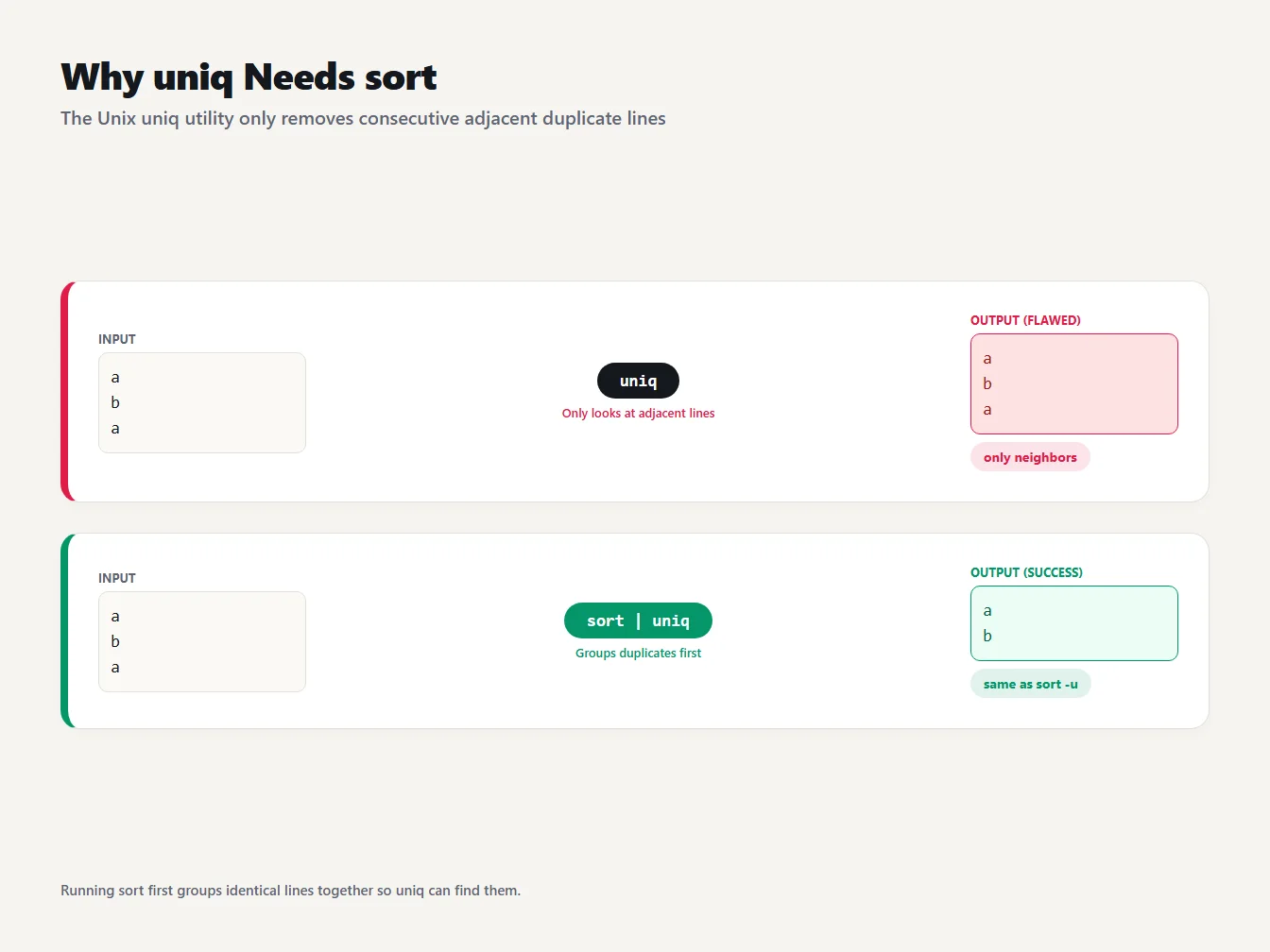
On the lines a, b, a, uniq alone leaves all three because it only removes adjacent repeats, while sort followed by uniq returns a and b.
Which method should you use?
Pick by what you need to keep. For a one-off list where order matters, use the Remove Duplicate Lines tool. If the data already lives in a spreadsheet, use Excel. For files and scripts that must keep order, use Select-Object -Unique or awk. Use sort -u or Sort-Object -Unique when a sorted result is a bonus rather than a problem. If you want the cleaned list sorted afterward, our Sort Lines tool does that in the browser.
Whichever you choose, decide first whether capital letters and trailing spaces should matter. That one decision explains almost every surprise in this article.

A decision guide: use the Remove Duplicate Lines tool to keep order on a one-off list, Excel for spreadsheets, Select-Object or awk for scripts, and sort -u when sorted output is fine.
Why duplicates are still there afterward
If the counter says fewer duplicates were removed than you expected, suspect an invisible difference. There are four usual culprits: a trailing space, a different capital letter, a curly apostrophe against a straight one, and a non-breaking space that looks like an ordinary space.
I tested the last two. "it's here" with a straight apostrophe and "it’s here" with a curly one both survive as separate lines. So do "big data" with a normal space and "big data" with a non-breaking one. The Whitespace Remover trims ends and collapses ordinary spaces, but it leaves those characters alone. Use the Find and Replace Text tool instead: replace the curly apostrophe with a straight one, or switch on regular expressions and replace with a normal space. Then run the remover again.
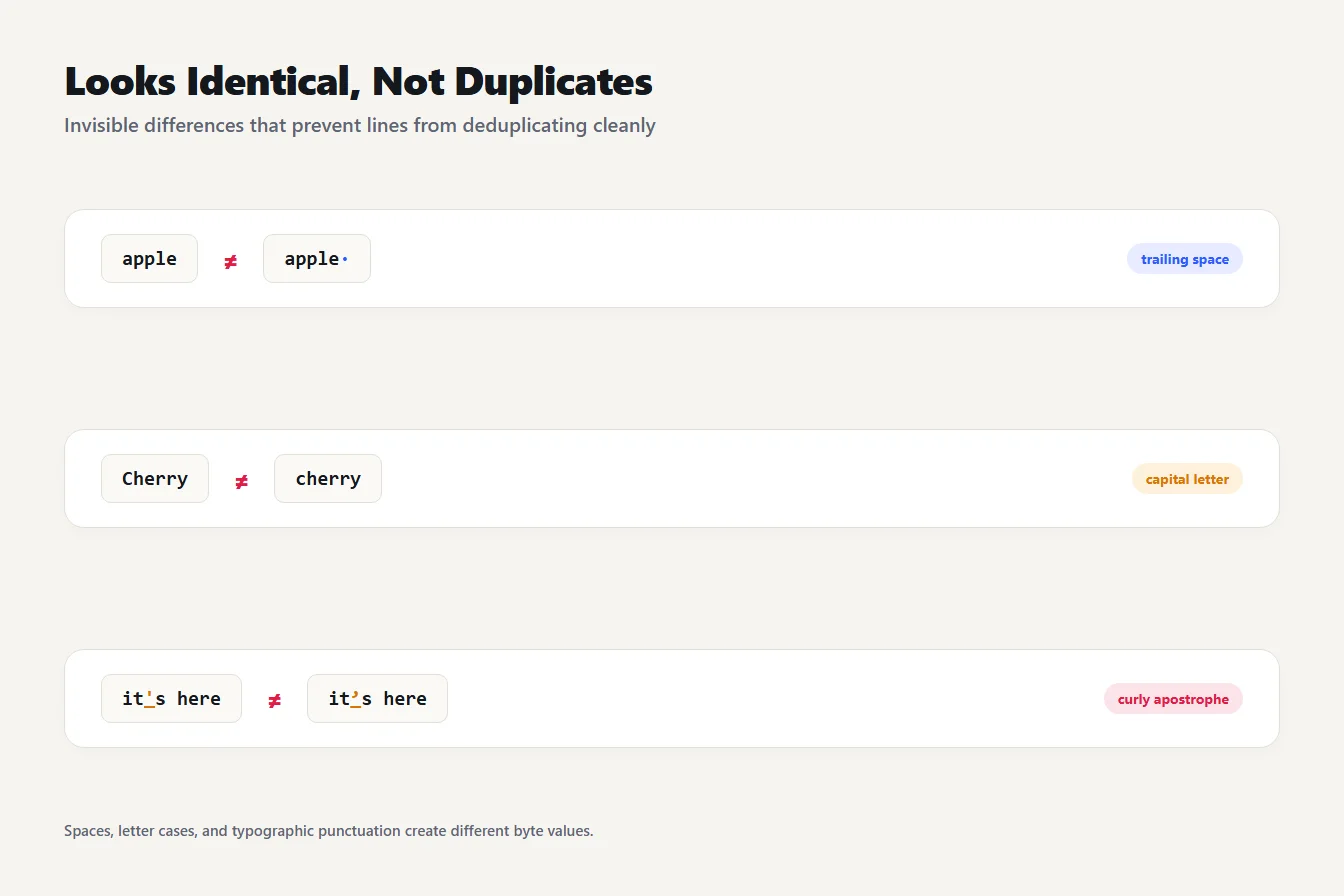
Three pairs that survive a duplicate remover because they differ: a trailing space, a capital letter (Cherry and cherry), and a straight versus curly apostrophe.
Frequently asked questions
How do I remove duplicate lines without changing the order?
Use a method that keeps the first copy of each line in place: the Remove Duplicate Lines tool, PowerShell's Select-Object -Unique, or awk '!seen[$0]++'. Avoid sort -u and Sort-Object -Unique when order matters, because both sort the output.
Does removing duplicate lines ignore capital letters?
Not in our tool: Apple and apple stay separate lines. Convert the list to lowercase first with the Case Converter. In the command line methods, sort -u -f and Sort-Object -Unique ignore case, while Select-Object -Unique does not by default.
Why are duplicate lines still there after I run the remover?
Almost always an invisible difference: a trailing space, a different capital letter, a curly apostrophe instead of a straight one, or a non-breaking space. Trim the list with the Whitespace Remover, then compare the lines that survived.
What is the difference between sort -u and uniq?
The command sort -u sorts the lines and drops repeats. Plain uniq only drops repeats that sit next to each other, so on unsorted input it can leave duplicates behind. Running sort and then uniq gives the same result as sort -u.
Is it safe to paste a private list into an online duplicate line remover?
With TheTextKit, yes: the list is processed in your browser and is not sent to a server. Check that for any other tool before you paste customer emails or internal data.
Clean your list in one pass
The next time you need to remove duplicate lines from text, trim the list and decide about case. Then paste it into the Remove Duplicate Lines tool and read the two counters before you copy the result. If the number of duplicates removed looks too low, one of the invisible differences above is almost certainly hiding in your list.