How to Remove Line Breaks From Copied Text (PDF, Word, Docs, Excel)
Remove line breaks from copied text in seconds. Fix PDF, Word, Google Docs and Excel pastes, keep your paragraphs, repair split hyphens, and use a free tool.
By TheTextKit Team
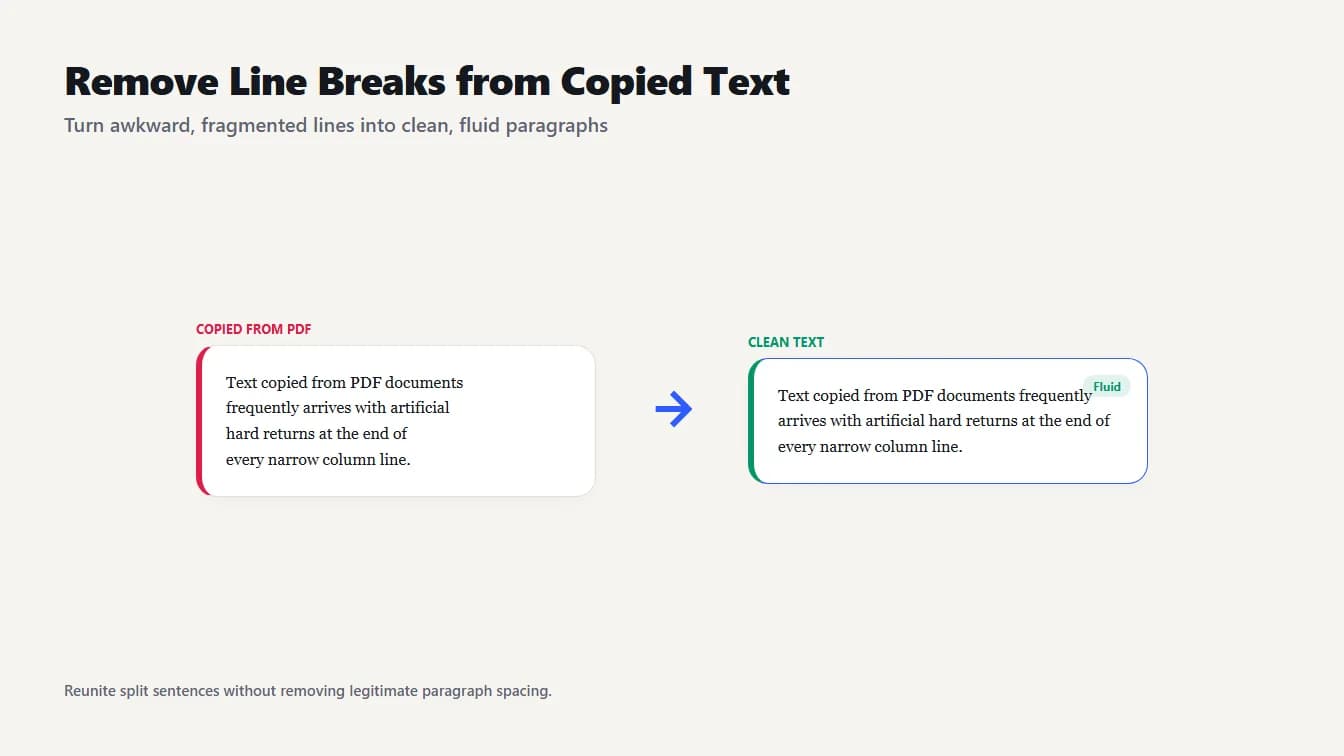
A card of copied PDF text broken into short lines is joined into one flowing paragraph, showing the result of removing line breaks from copied text.
You paste a paragraph from a PDF and every line ends in a hard break, so it lands as a ragged column that no amount of resizing fixes. To remove line breaks from copied text, replace each break inside a paragraph with a single space and keep the blank lines between paragraphs. The quickest way is to paste the text into the Remove Line Breaks tool, pick "Keep paragraphs" and copy the result.
Below you'll find what each mode does, how to repair words split by hyphens, the exact steps in Word, Google Docs and Excel, and the cases where you should leave the breaks alone.
Remove line breaks from copied text in three steps
Here is the short version. Paste the text into the Remove Line Breaks tool, decide what should happen to each break, and copy the cleaned text back out. It all runs in your browser, so nothing you paste is uploaded.
- Paste the messy text into the box. The tool counts the line breaks it found, which is a quick sanity check.
- Pick a mode. "Keep paragraphs" is the right default for text from PDFs, emails and chat. The next sections explain the other two.
- Copy the cleaned output.
There is one extra checkbox, "Also collapse repeated spaces into one." Leave it on for prose. Turn it off when the spacing carries meaning, such as text lined up in columns.
Why copied text has a line break on every line
A PDF is closer to a picture of a page than to a document. It stores each line of text at a position on the page and has no real idea of a paragraph. When you copy a block, the clipboard gets the lines as they appear, each one ending in a newline. Plain-text emails and some chat exports do something similar when they wrap lines at a fixed width.
The break itself isn't a single character either. Windows text ends lines with a carriage return plus a line feed (CRLF), Linux and modern macOS use a line feed (LF), and very old Mac text used a carriage return alone. Some word processors add a line separator (U+2028) or a paragraph separator (U+2029) on top. The tool treats all of them as line breaks, so you never need to know which one you have.
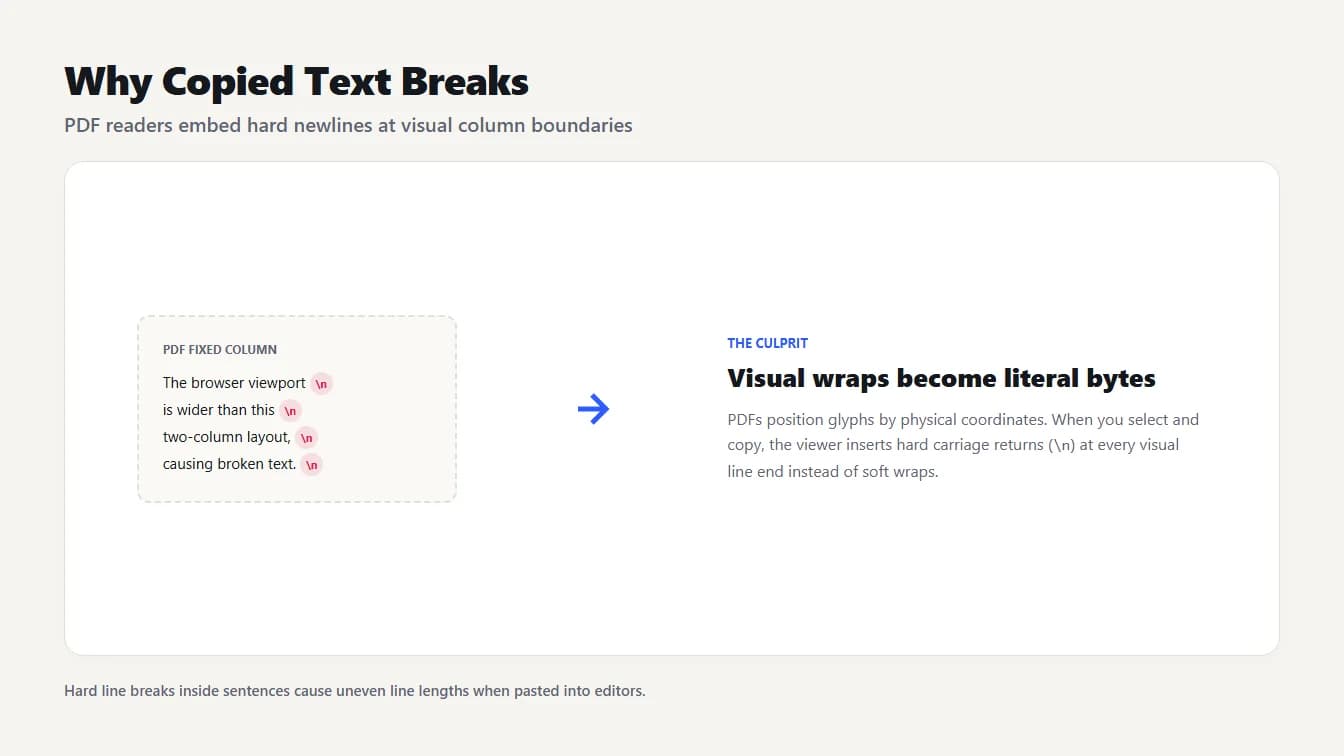
PDF readers insert a hard newline marker at the end of every visual line, so copied text arrives with a break on each line instead of flowing as a paragraph.
Which option to pick: space, keep paragraphs or remove completely
The tool has three modes, and the difference only shows once your text has more than one paragraph. Below is one input with a blank line between its two paragraphs, and then the result of each mode:
The quarterly report shows that
revenue grew in every region.

Costs stayed flat, which
left more room for hiring.
| Mode | What you get |
|---|---|
| Replace with a space | The quarterly report shows that revenue grew in every region. Costs stayed flat, which left more room for hiring. |
| Keep paragraphs | The quarterly report shows that revenue grew in every region. (blank line) Costs stayed flat, which left more room for hiring. |
| Remove completely | The quarterly report shows thatrevenue grew in every region.Costs stayed flat, whichleft more room for hiring. |
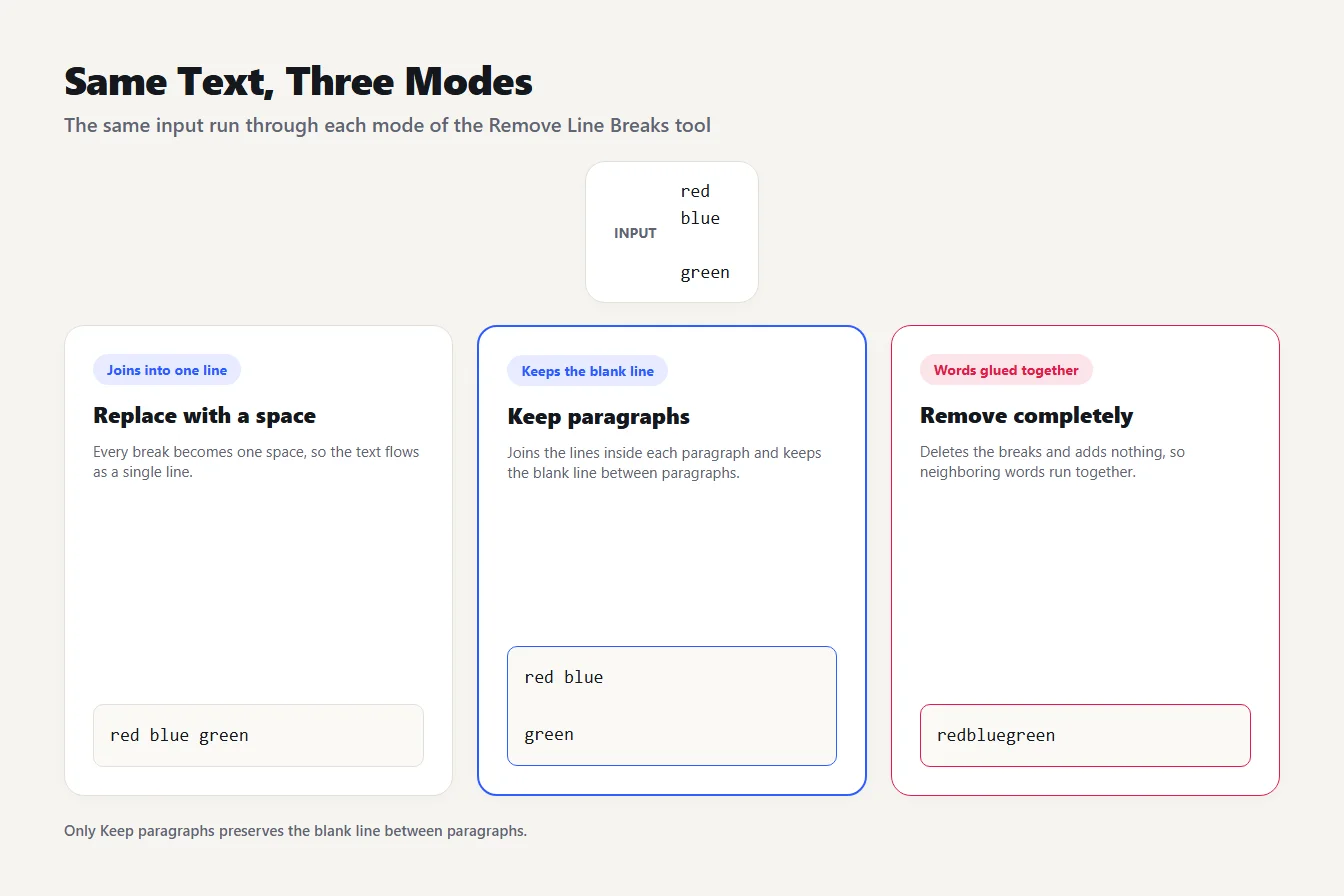
Three cleanup modes are compared on the same text: one joins everything into a single line, one keeps blank lines between paragraphs, and one replaces each break with a space.
Use "Keep paragraphs" for almost everything you paste. Use "Replace with a space" when you want one continuous line, for a search box, a caption or a single spreadsheet cell. Save "Remove completely" for the rare case where a break lands inside a long string such as a wrapped URL or an ID, because, as the third row shows, it glues neighboring words together.
When the PDF has no blank lines between paragraphs
Here is the catch that trips people up. "Keep paragraphs" can only keep paragraphs that the text still marks with a blank line, and many PDFs lose that gap on the way to your clipboard. Every line then arrives separated by a single break. Run that text through any mode and you get one long block, because nothing in it says where a paragraph ended.
The fix is to mark the endings yourself. Scan the pasted text and add a blank line after the last line of each paragraph (it is usually the short one that stops well before the right margin), then run "Keep paragraphs".
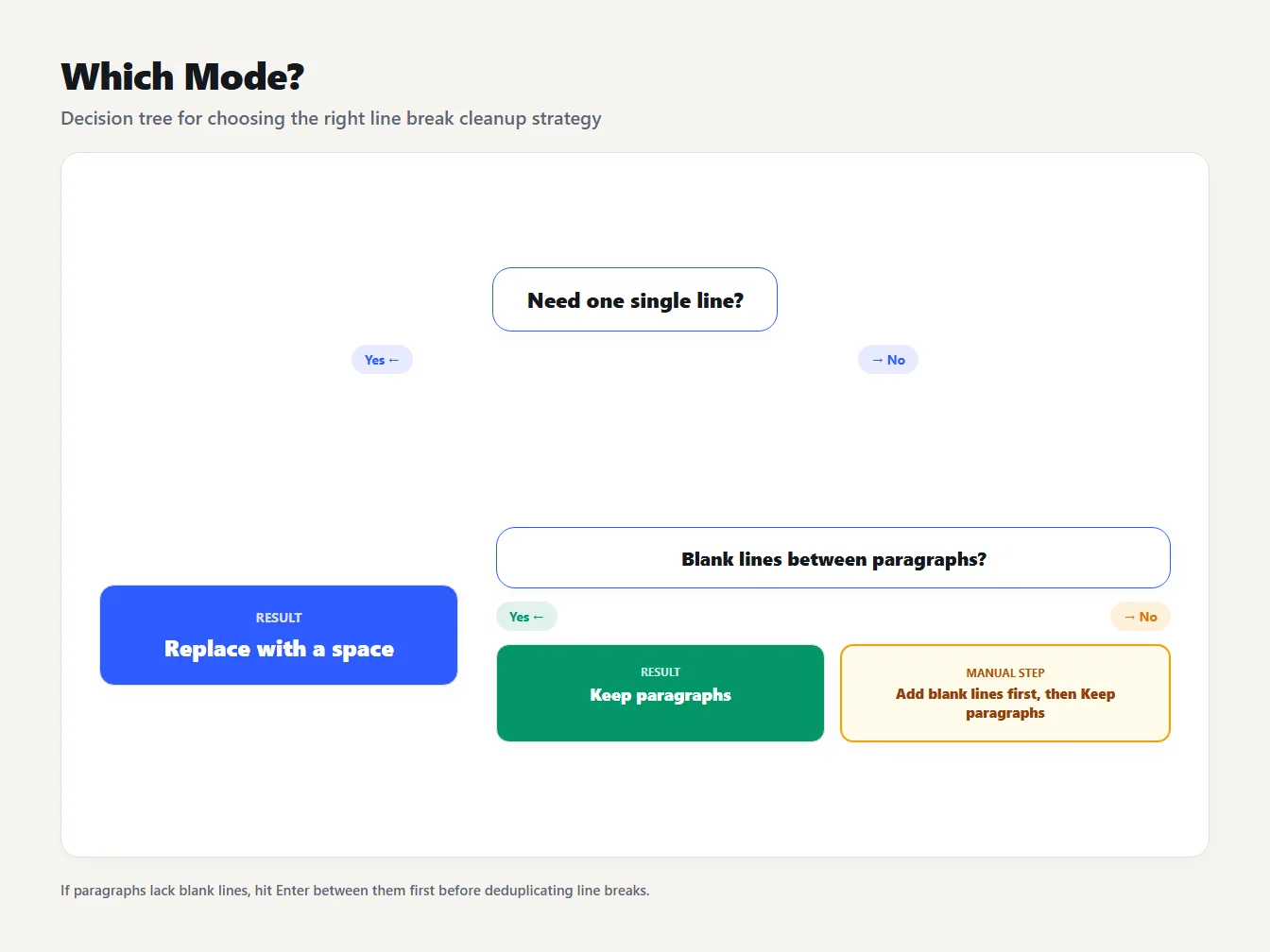
A decision tree: choose Replace with a space for one single line, Keep paragraphs when blank lines separate paragraphs, and add blank lines first when they don't.
Fix hyphenated words split across lines
Printed layouts break long words with a hyphen at the end of a line, and copying keeps both the hyphen and the break. Take this text:
The inter-
national team signed a well-
known partner.
"Replace with a space" turns it into "The inter- national team signed a well- known partner." The hyphens stay and a stray space appears. "Remove completely" gives "The inter-national team signed a well-known partner.", which looks closer but still has the hyphen in "inter-national".
To drop it, open the Find and Replace Text tool, switch on the regular expression option, search for -\r?\n and leave the replacement empty. The \r? makes it work whether your text uses CRLF or LF. On the example above it reports 2 replacements and returns "The international team signed a wellknown partner."
Now the problem: "wellknown" is wrong, because "well-known" keeps its hyphen even in the middle of a line. A regex can't tell a split word from a real hyphenated one, and neither can any other tool. Treat the replacement count as a to-do list. If it says 2 and you can account for both, you're done. If you can't, search for the specific word instead, such as inter-\r?\nnational replaced with international, and run the line break remover afterward.
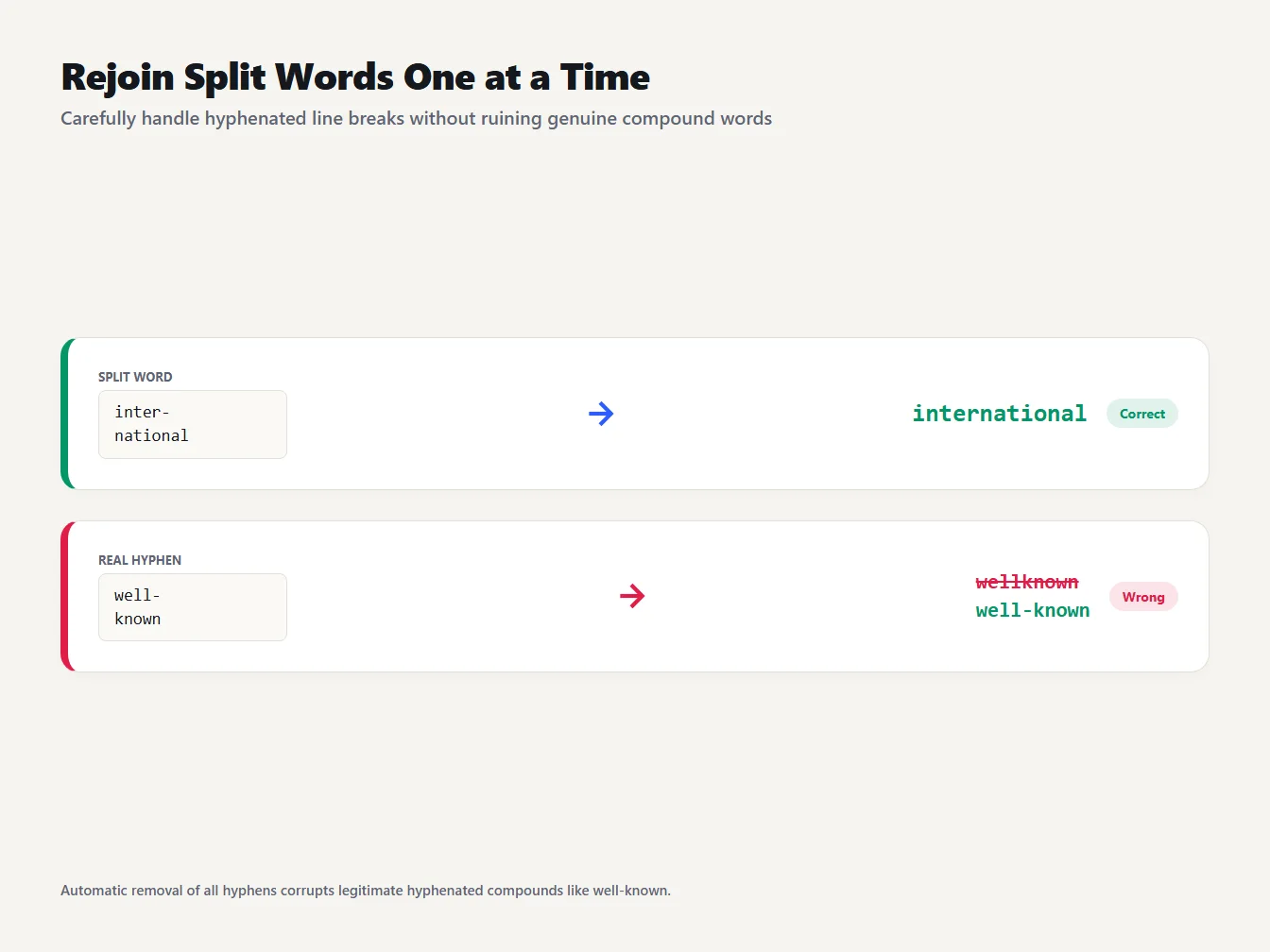
Rejoining inter- and national gives international, but well- and known wrongly becomes wellknown, because well-known keeps its hyphen even mid-line.
Remove line breaks in Word, Google Docs and Excel
If the text already lives in a document, you can fix it where it is.
In Word
Press Ctrl+H, click More if the dialog is collapsed, and type ^p in the Find what box. That is the code for a paragraph mark, and the codes are case-sensitive, so ^P won't work, according to the Word MVP FAQ on special characters. Type one space in Replace with and choose Replace All. You can also click Special and pick a character from the list, a menu that Microsoft's Find and Replace guide describes. Use ^l for manual line breaks, the ones Shift+Enter creates.
Replacing every paragraph mark glues all your paragraphs together. To avoid that, and assuming a blank line separates your paragraphs, first replace ^p^p with a marker that appears nowhere in the text, such as @@. Then replace ^p with a space. Finally replace @@ with ^p^p.
In Google Docs
Docs has Find and replace under the Edit menu, and Google's help page lists "Match using regular expressions" among its options. Tick it, search for \n and replace with a single space. Try it on a short sample first and check that your paragraphs survive. Or skip the patterns: paste the text into the Remove Line Breaks tool, copy the result and paste it back.
In Excel
On Windows, Excel stores a line break inside a cell as the line feed character, CHAR(10). For a quick fix, select the cells and press Ctrl+H. Click in Find what and press Ctrl+J (the box looks empty, but it now holds a line break), put a space in Replace with and choose Replace All.
To leave the originals alone, use a formula such as =SUBSTITUTE(A2,CHAR(10)," "). Microsoft documents SUBSTITUTE as swapping old text for new text. The CLEAN function also removes line breaks, along with the other nonprinting characters, but it deletes them instead of inserting a space, so neighboring words can run together.
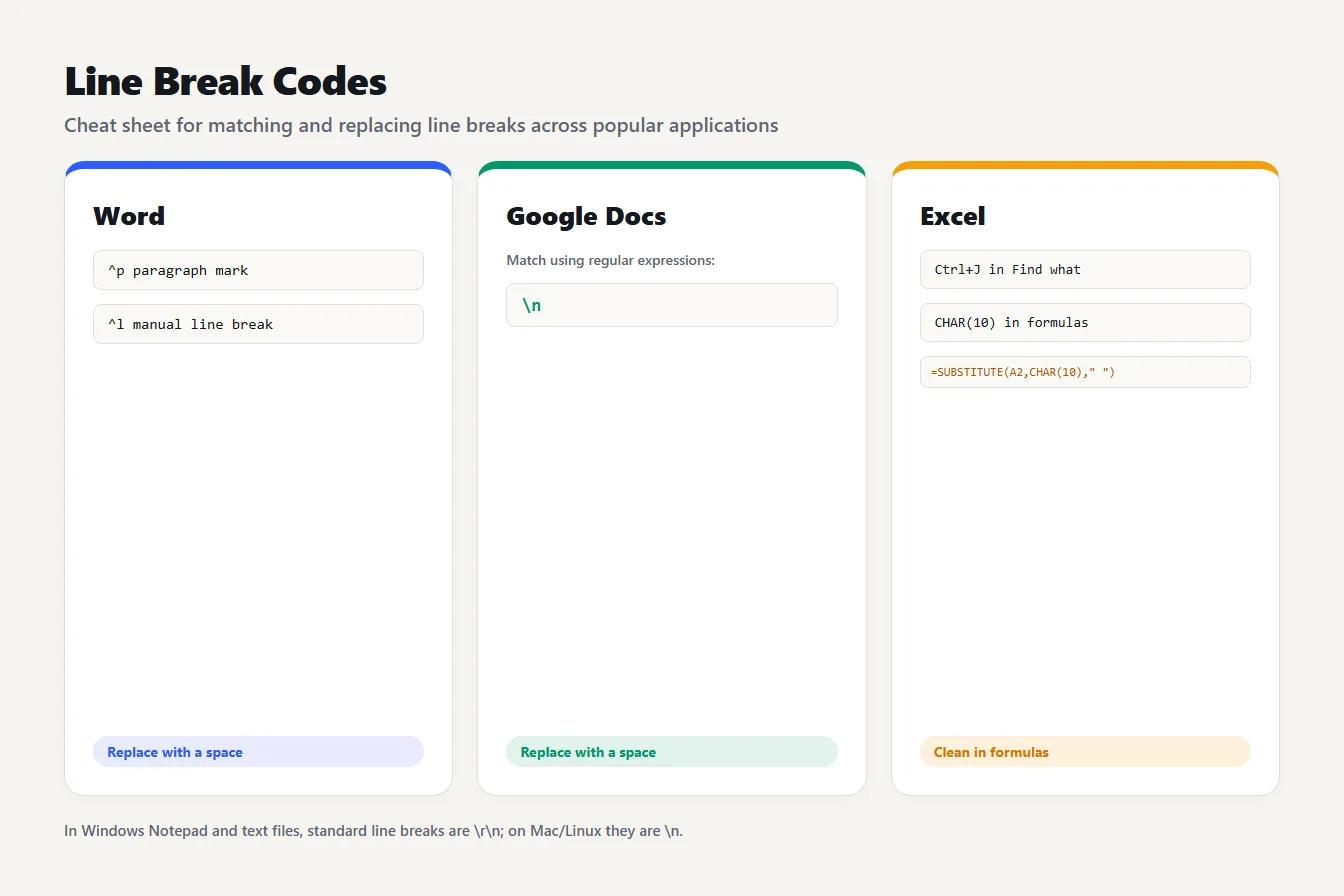
A cheat sheet of the codes to search for: ^p and ^l in Word, a regular expression for a newline in Google Docs, and Ctrl+J or CHAR(10) in Excel, each replaced with a space.
When you should leave the line breaks alone
Not every line break is an accident, so before you remove line breaks from copied text, ask whether they carry meaning. Poems, addresses, lists, lyrics, code and table rows all depend on them. A mailing address pasted as three lines turns into one long string nobody wants to read back. If your text is mostly prose with a few of these, clean the prose and paste the rest back untouched.
Two smaller traps. The spaces checkbox also flattens runs of spaces inside a line. Take "Name", two spaces, a line break, two spaces and "Address": with the box on you get "Name Address", and with it off, five spaces sit between the words. Turn it off when alignment matters. And if the cleaned text still has tabs or stray blank lines, the Whitespace Remover handles those.
Finally, read the output once before you send it anywhere. You're looking for jammed words like "thatrevenue" and for hyphens that should or shouldn't be there.
Frequently asked questions
How do I remove line breaks from text copied from a PDF?
Paste it into the Remove Line Breaks tool and choose "Keep paragraphs". If your PDF text has no blank lines between paragraphs, add them first, because the tool can only keep paragraph gaps that exist. Repair any hyphenated words separately with Find and Replace.
Will removing line breaks delete my paragraphs?
Only if you pick a mode that ignores them. "Keep paragraphs" joins the lines inside each paragraph and keeps a blank line between paragraphs. "Replace with a space" merges everything into one line, which suits a search box but not an article.
How do I remove line breaks without joining words together?
Replace each break with a space instead of deleting it. TheTextKit does that in its "Replace with a space" mode. Word needs a single space in the Replace with box, and Excel needs SUBSTITUTE with a space as the new text, not an empty string.
What is the difference between a line break and a paragraph break?
In a word processor, a paragraph break starts a new paragraph, while a manual line break (Shift+Enter in Word) starts a new line inside the same paragraph. Word uses different codes for them, ^p and ^l. In plain text both are just newline characters, and that is what the Remove Line Breaks tool works with.
Is it safe to paste private text into an online line break remover?
With TheTextKit, yes: the text is processed in your browser and is not sent to a server. Check that for any other tool before you paste contracts or personal data.
Clean up your next paste before you edit it
The next time you need to remove line breaks from copied text, resist the urge to delete them by hand. Paste it into the Remove Line Breaks tool, keep the paragraphs, fix any split hyphens with Find and Replace, and read the result once. That order saves you from retyping a page that was only ever one paragraph.