How to Check H1 and H2 Tags on Any Page
Three ways to check H1 and H2 tags on any page: View Source, a console snippet and a heading analyzer. We ran them on all 119 pages of our own site.
By TheTextKit TeamPublished
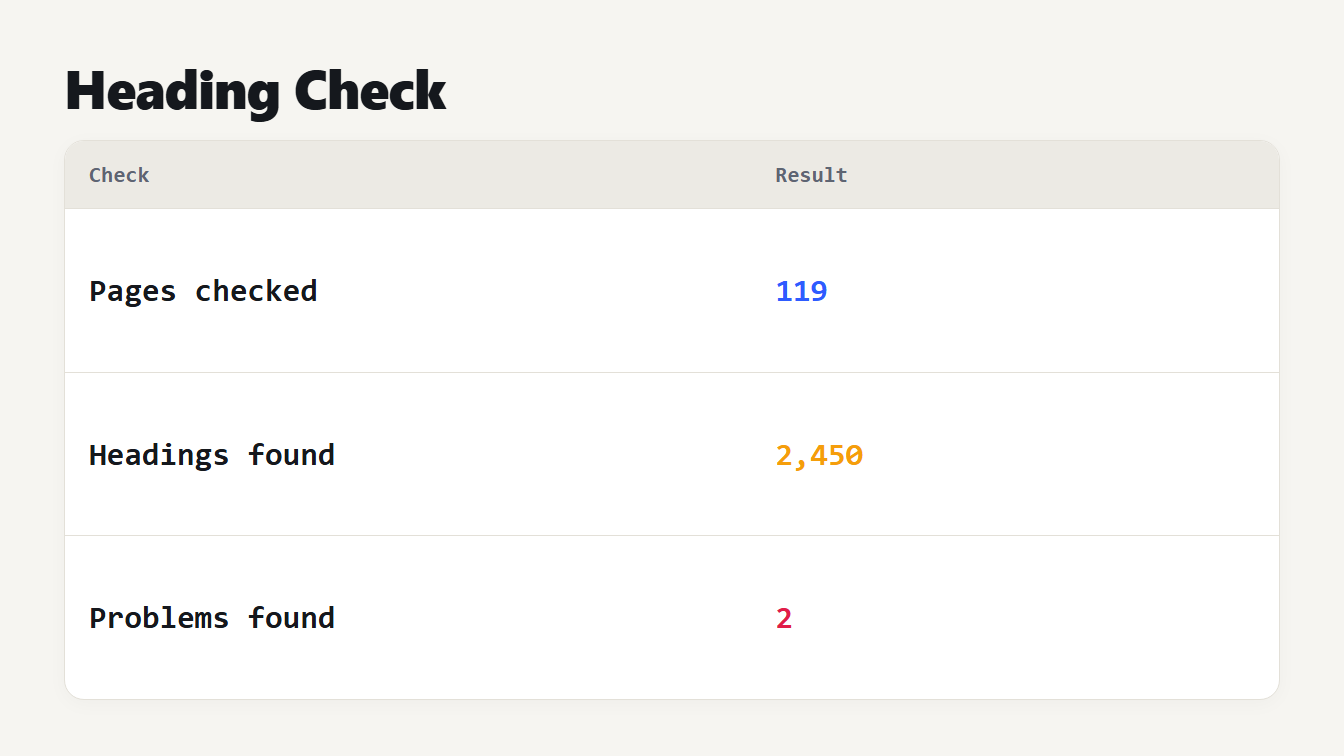
A table of three results from checking the headings of 119 live pages. 119 pages were checked and 2,450 headings were found. Two problems were found and fixed.
To check H1 and H2 tags on a page, view its source and search for <h1, or run one line in the browser's console that lists every heading. The first shows what the server sent, the second shows what the page looks like after JavaScript has run, and a heading analyzer turns either into a clean outline. This guide shows all three, what to look for, and what we found when we ran them on all 119 pages of our own site: two real problems, both now fixed.
Check H1 and H2 tags with View Source
This is the quickest check and needs no tools. In Chrome or Edge, open the page and press Ctrl+U (Cmd+Option+U on a Mac). A new tab shows the page's HTML. Press Ctrl+F and search for <h1, then <h2. This is the fastest way to check H1 and H2 tags on a page you don't control.
Each match is a heading, with its text just after the tag. If you search for <h1, you should usually find one. Matches inside a <script> block or a comment don't count, because a browser does not show them as headings.
The limit of View Source is that it shows only the HTML the server sent. A page that builds part of its content with JavaScript, such as a product page that adds a "Reviews" section after loading, has headings that View Source cannot see.
Check H1 and H2 tags with the browser console
The developer tools show the page as it is after JavaScript has run. Press F12, open the Console tab, paste this line and press Enter:
[...document.querySelectorAll('h1,h2,h3,h4,h5,h6')].map((h) => h.tagName + ' ' + h.textContent.trim().replace(/\s+/g, ' '))
It prints every heading in page order, each with its level. On our guide to MD5 versus SHA-256 it prints 34 headings, starting like this:
H1 MD5 vs SHA256: Which Hash Should You Use, and When?
H2 MD5 vs SHA256 at a glance
H2 What a hash does, and why a tiny change matters
H2 Why MD5 is considered broken
H3 Where SHA-1 fits
To see why you should check both, we made a small page with an H1 in the HTML and an H2 added by a script. View Source finds one heading, the H1. The console finds two: the H1 and the H2 titled "Reviews". Neither is wrong, because each shows a different stage of the page.
| Method | Shows | Misses |
|---|---|---|
| View Source | The HTML the server sent | Headings added by JavaScript |
| Console snippet | The page after JavaScript | Nothing, but hidden headings show up too |
| Heading Tag Analyzer | A clean outline of any HTML you paste | Whatever is not in the HTML you pasted |
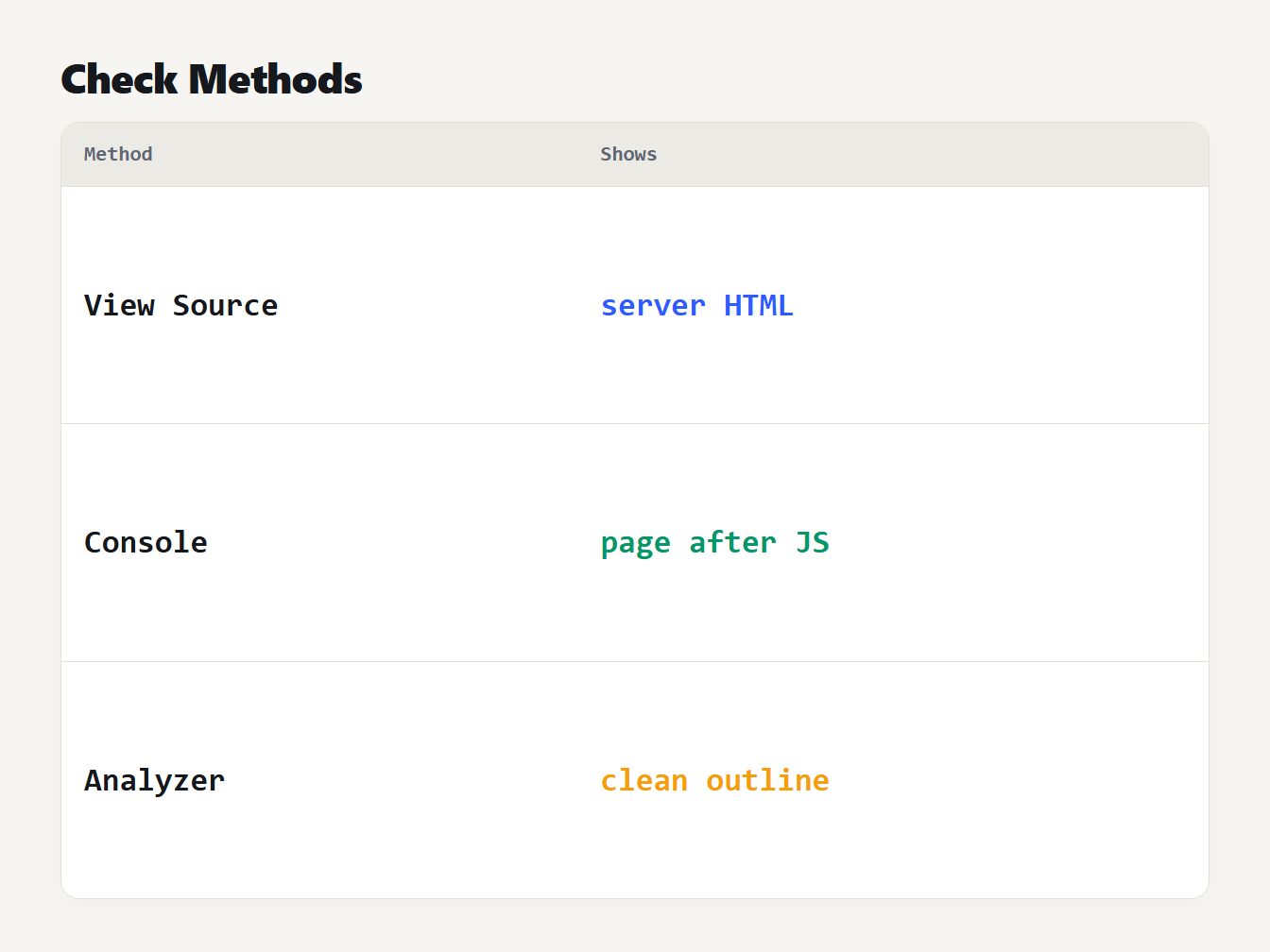
A table of three ways to check a page's headings. View Source shows the HTML the server sent and misses headings added by JavaScript. The console snippet shows the page after JavaScript. The Heading Tag Analyzer turns pasted HTML into a clean outline.
Turn the list into an outline
A flat list is fine for a short page. To check H1 and H2 tags on a long page, an outline is easier to judge. Paste the HTML from View Source, or the page's HTML copied from the developer tools, into the Heading Tag Analyzer. It lists the headings in order, indented by level, with a count for each level.
It also flags the two things readers notice. A skipped level, such as an H3 straight after an H1, is marked, and an empty heading is marked too. A missing or repeated H1 is shown as a note, not an error, because Google says several H1 headings are not a problem for Search. It reads Markdown as well as HTML, so you can check a draft before it is published.
What to look for
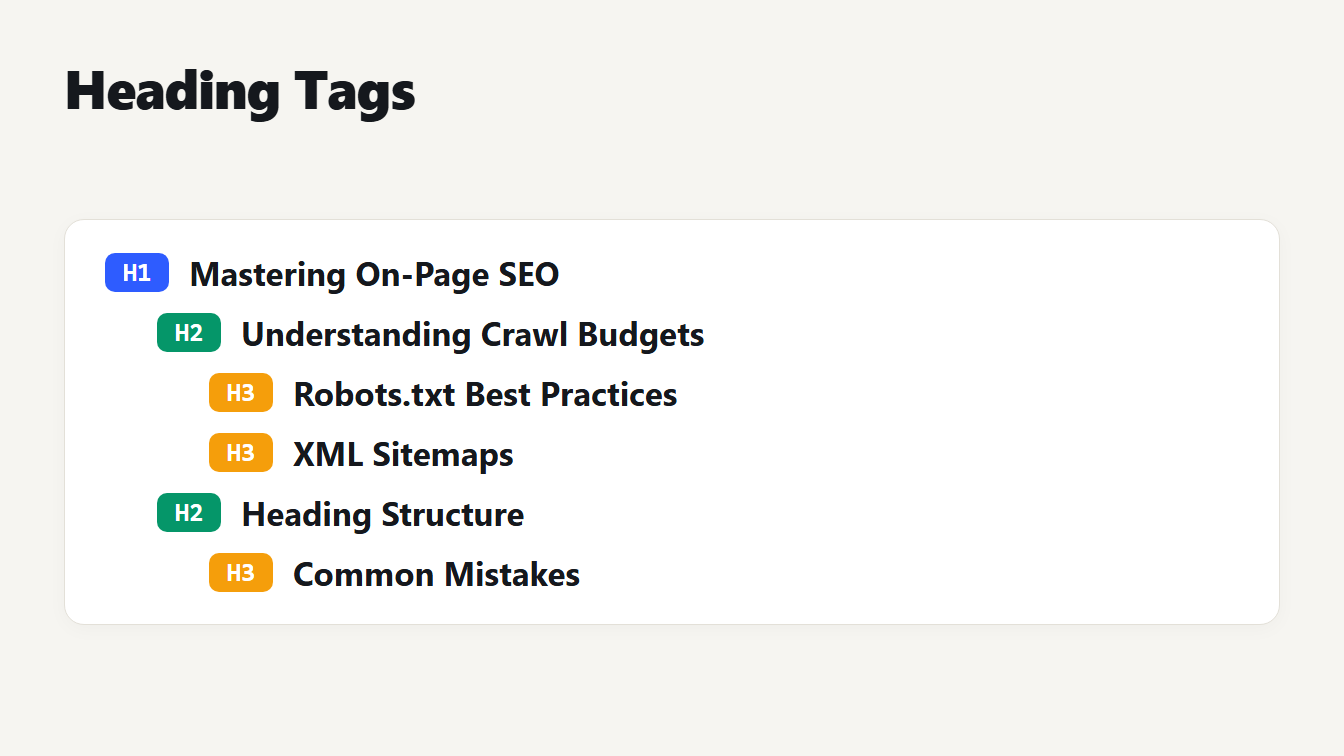
When you have the list, go through five points. Our guide to heading tags explains the reasoning behind each one.
- One clear H1 that names the page. Several are allowed, but the W3C tutorial on headings treats the H1 as the main heading, so extras should be deliberate.
- H2 headings for the main sections. Read only the H2 lines. They should tell the story of the page.
- No skipped levels on the way down. An H2 followed by an H4 leaves a gap in the outline.
- No empty headings. Icons and template pieces sometimes print an empty tag.
- Clean heading text. The text should be the words a reader would use, with nothing extra mixed in.
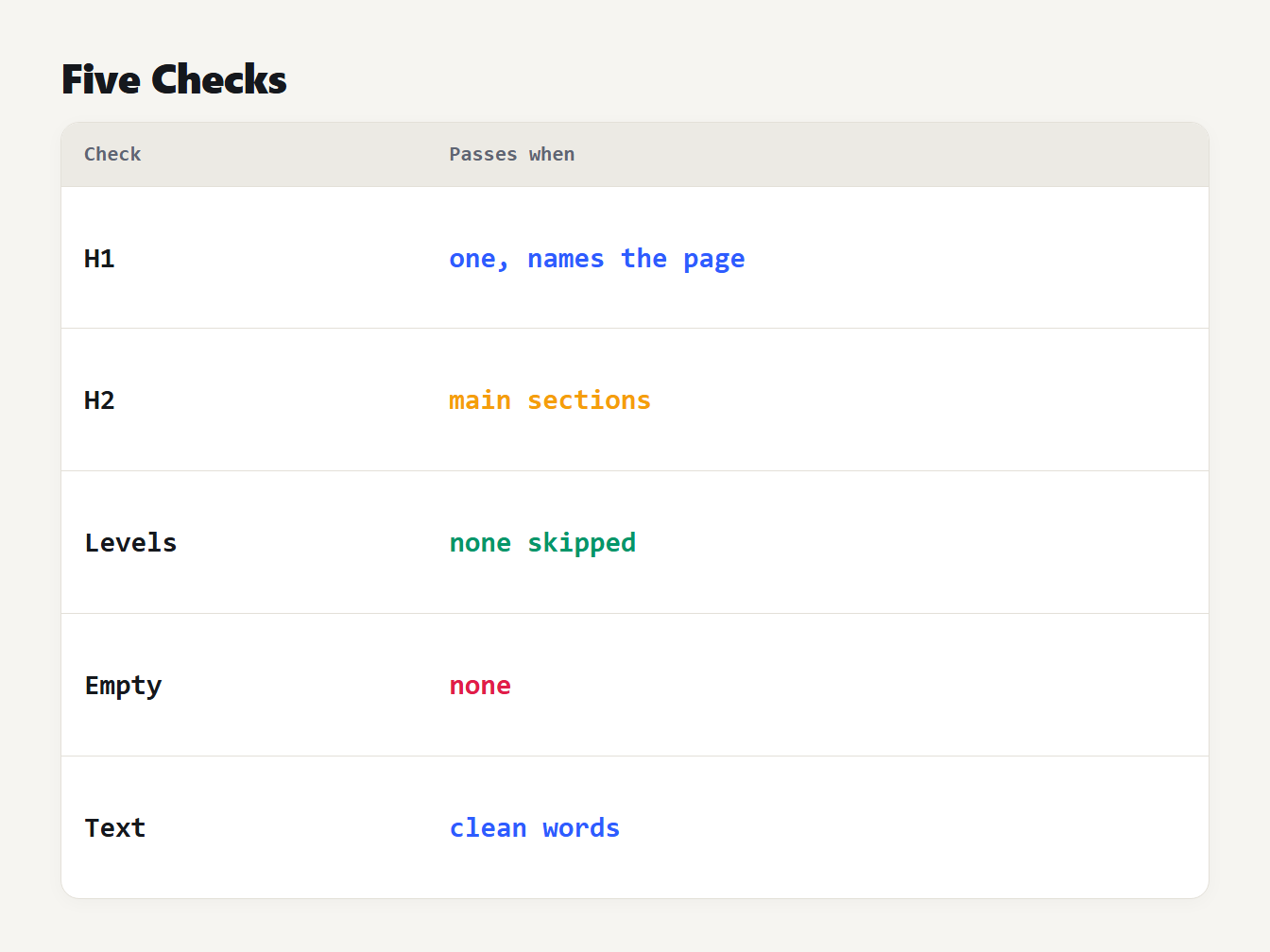
A table of five checks for a page's heading outline. The H1 should be one heading that names the page. The H2 headings should be the main sections. No levels should be skipped. No heading should be empty. The heading text should be clean words.
What we found on our own 119 pages
We ran the console snippet in Chromium on every page in our live sitemap, 119 in all, and ran the Heading Tag Analyzer on each page's HTML. Then we compared the two lists.
| Check | Result |
|---|---|
| Pages checked | 119 |
| Headings found | 2,450 |
| Pages with exactly one H1 | 119 |
| Pages where the analyzer matched the browser | 118 |
| Problems found | 2 |
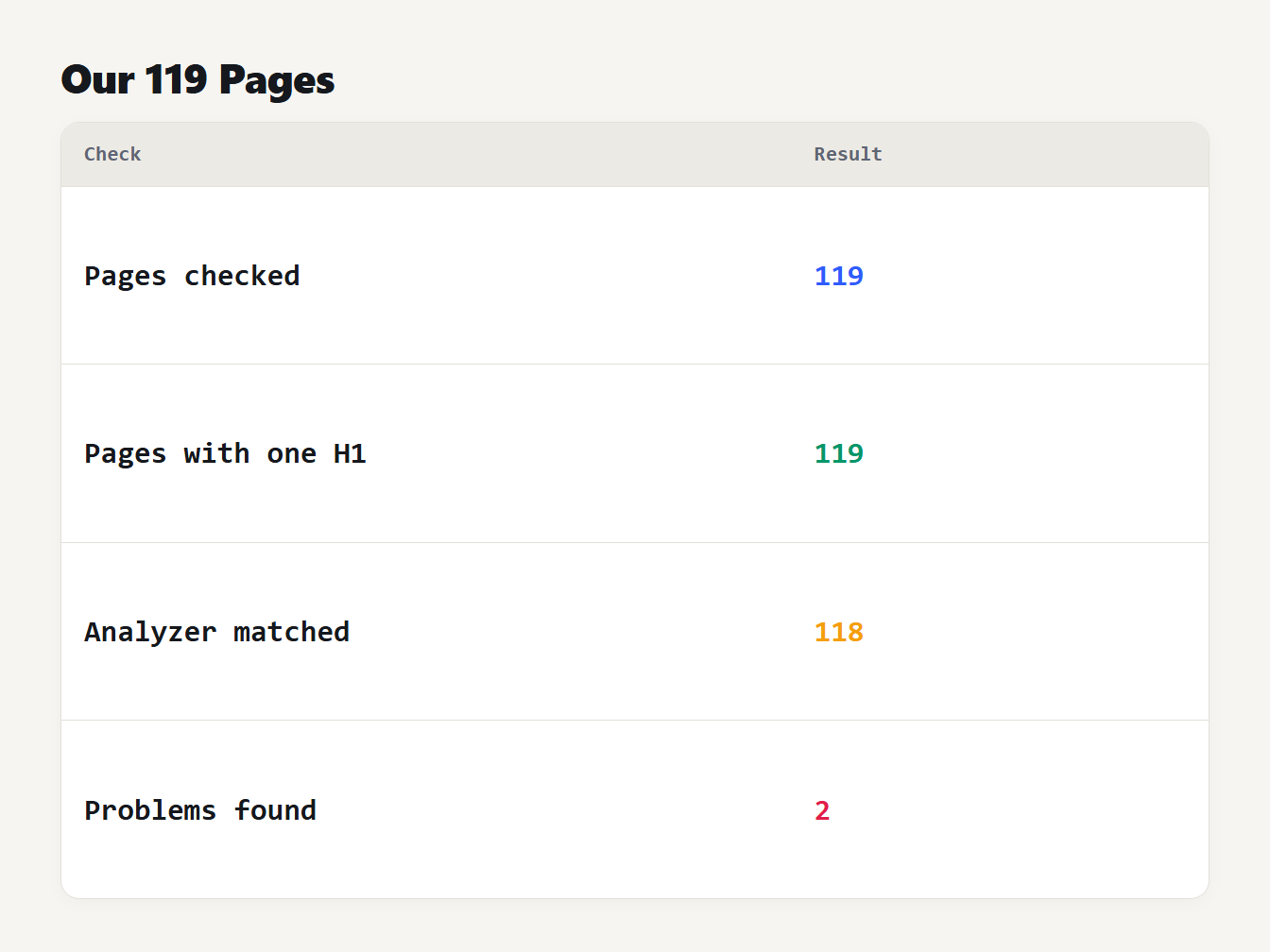
A table of the results of checking all 119 pages of our site. All 119 pages have exactly one H1. The analyzer matched the browser on 118 pages. Two problems were found.
Every page had exactly one H1, and the number of H2 headings per page ranged from 1 to 14, with a median of 2. The analyzer and the browser agreed on 118 pages, down to the text of every heading. Two problems showed up, and both were things we would not have noticed by looking at the pages.
A mock search result marked up as a heading. Our SERP Preview tool draws a fake Google result, and its blue title was an <h3>. It sat before any H2, so it was the only skipped level on the whole site. It also caused the one difference between the analyzer and the browser. The title is shortened to fit the preview, and the shortened text differed slightly between the server's HTML and the page after it loaded. We changed it to a plain div, since a mock result is not part of the page's own outline.
A badge inside every tool's H1. Each tool page shows a small badge such as "pct" or "Aa" next to its title, and the badge was inside the H1 element. It is hidden from screen readers, but its letters were still part of the heading's text, so the H1 of the Word Counter read as "AaWord Counter" to anything that reads the HTML. We moved the badge beside the heading, so the H1 now says only "Word Counter". The page looks the same.
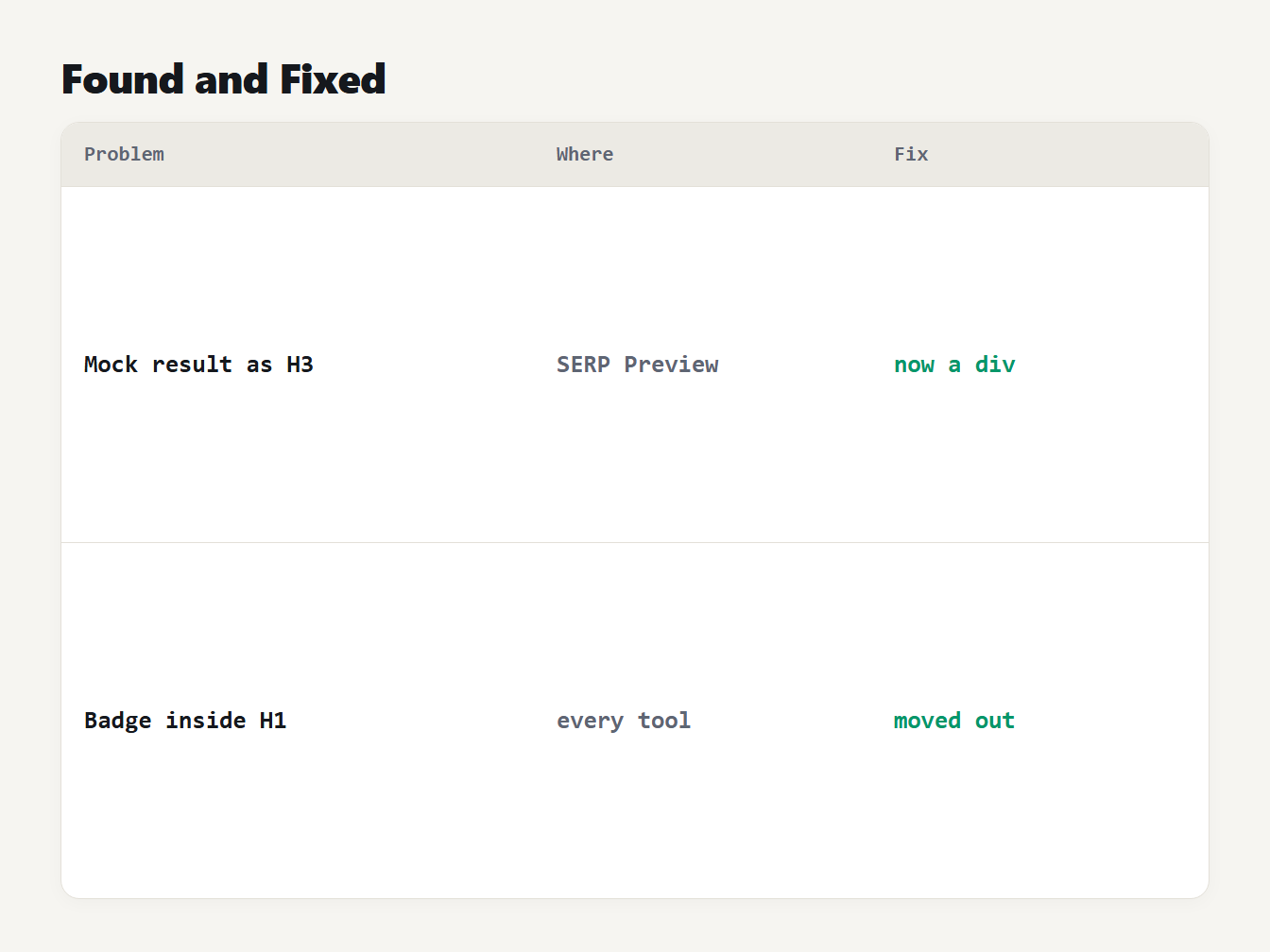
A table of the two problems found on our own site. The mock search result on the SERP Preview page was an H3 and is now a div. The badge inside the H1 of every tool page was moved outside the heading.
Common problems and quick fixes
| What you see | Likely cause | Fix |
|---|---|---|
| No H1 in View Source but one in the console | JavaScript adds it | Check the rendered page, or render the heading on the server |
| Strange letters at the start of an H1 | A badge, icon or label inside the heading | Move it outside the heading element |
| An H4 right after an H2 | A heading chosen for its size | Use the right level and style it with CSS |
| An empty H2 | A template that prints a heading with no text | Remove it or fill it in |
| Headings in a widget or mock | A component using heading tags for looks | Use a div or p with a class |
When to check again
Check H1 and H2 tags after any change to a template, not only after editing a page. The badge problem above lived in one layout file that every tool page uses, so a single change affected 91 pages at once and nobody saw it, because the pages looked right. The same is true of a theme update, a new widget or a page builder block that prints its own headings. A quick pass with the console snippet on two or three typical pages is enough to catch these.
The SEO Starter Guide says that for Search it does not matter if headings are used out of order, and the MDN reference for heading elements explains what each level is for. The reasons to keep the outline tidy are readers and accessibility more than rankings.
Limits
You can check H1 and H2 tags this way on any public page, but the checks only show the headings and their levels. They don't judge whether the words are good, and they don't predict rankings. The console snippet lists every heading element, including ones hidden from view by CSS, so a heading that is not visible can still appear in the list. The analyzer reads the HTML you paste. It doesn't fetch a live page for you, and it can't see headings that only exist after JavaScript runs unless you paste the rendered HTML.
Frequently asked questions
How do I check the H1 tag of a page?
Open the page, press Ctrl+U to see its source and search for h1. Or open the developer tools, choose the Console and run a short snippet that lists every heading. Both show the H1 text and its level.
Why does View Source show different headings from the page?
View Source shows the HTML the server sent. If JavaScript adds a heading afterwards, it appears on the page and in the developer tools but not in View Source. Check both when a page builds its content in the browser.
How many H1 tags should a page have?
One clear H1 that names the page is the safe choice. Google has said several H1 headings are not a problem for Search, but accessibility guidance treats the H1 as the main heading, so extra ones should be intentional.
Can I check headings in Markdown?
Yes. The Heading Tag Analyzer reads Markdown headings as well as HTML: lines starting with hash signs and lines underlined with equals signs or dashes. Code blocks are skipped.
Do H1 and H2 tags affect rankings?
Google's SEO Starter Guide says it does not matter for Search if headings are used out of order, and there is no ideal number of them. Clear headings still help readers and screen reader users find their way.
Check your headings now
Open the Heading Tag Analyzer and paste a page's HTML to see its outline, the count at each level and any skipped or empty headings. To see how the title and description of the same page look in search, use the SERP Preview. Everything runs in your browser, so nothing you paste is uploaded.