How to Test robots.txt: Five Checks Before You Publish
How to test robots.txt step by step: check the file loads, run URLs through a tester, read the winning rule, avoid false results and confirm in Search Console.
By TheTextKit TeamPublished
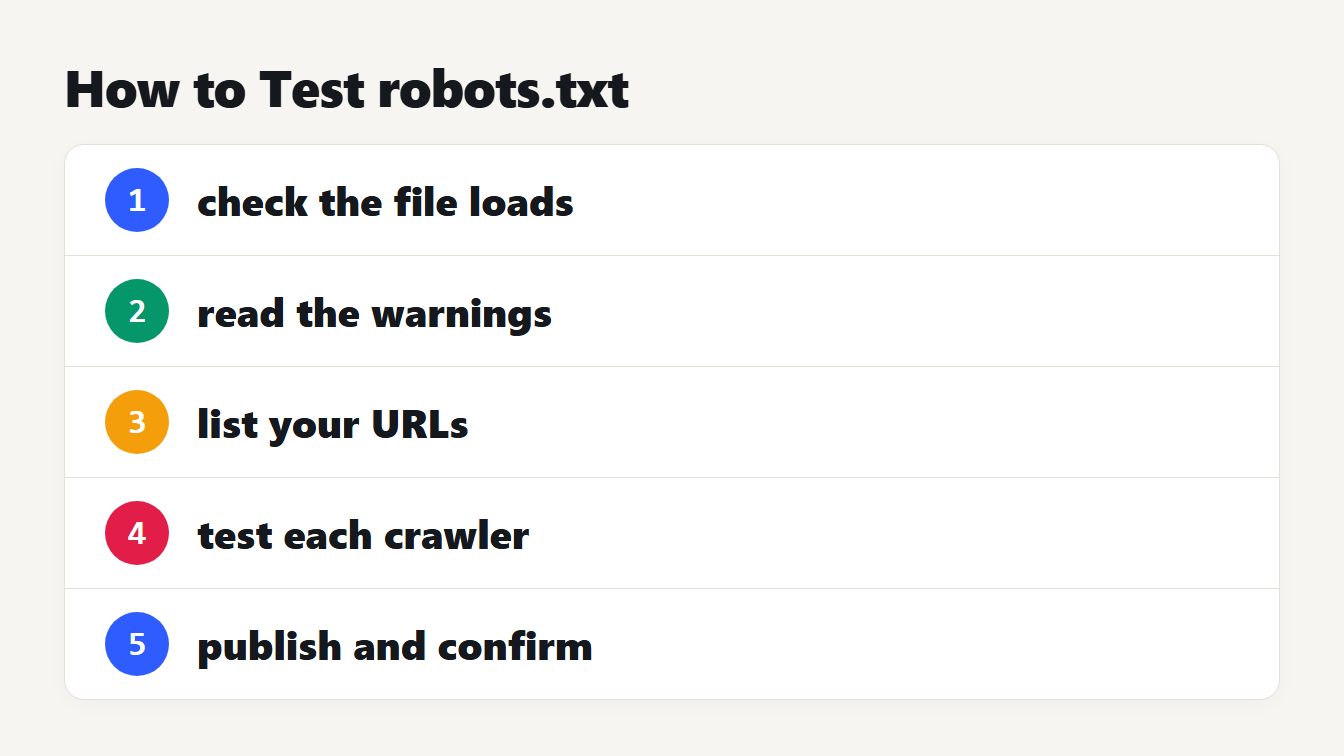
A numbered list of five steps: check the file loads, read the warnings, list your URLs, test each URL for the right crawler, and publish and confirm.
To test robots.txt, open the live file to confirm it loads, paste it into a tester, run the URLs that matter for each crawler, and read which rule decided each answer. Then publish and let the crawlers pick it up. A small mistake in this file can block a whole site or open a folder you meant to close, and nothing warns you when it happens. This guide gives five checks for how to test robots.txt, a worked example with real verdicts, and the traps that make a result surprising.
How to test robots.txt in five steps
- Check the file loads. It must be at the root, return a normal status and stay under the size limit.
- Read the warnings. Typos such as a missing slash show up here first.
- List your URLs. Write down pages that must stay crawlable and pages that must be blocked.
- Test each URL for the right crawler. A rule for one crawler does not apply to another.
- Publish and confirm. Crawlers cache the file, so allow time for the change to be seen.
Step 1: check that the robots.txt file loads
Open yourdomain.com/robots.txt in a browser. What the server returns matters more than the content, and RFC 9309, the Robots Exclusion Protocol, spells out the cases:
| What the crawler gets | What the standard says |
|---|---|
| A normal file | The rules apply |
| A 4xx status such as 404 | The file is unavailable, so the crawler may access any resource |
| A 5xx status or a network error | The crawler must assume a complete disallow |
The last row is the dangerous one. A server error on this one file can halt crawling of the whole site, even though no rule says so. The standard also says crawlers must parse at least 500 kibibytes of the file, and Google ignores anything after its first 500 KiB, which our tester warns about. It also says crawlers should not use a cached copy for more than 24 hours unless the file is unreachable.
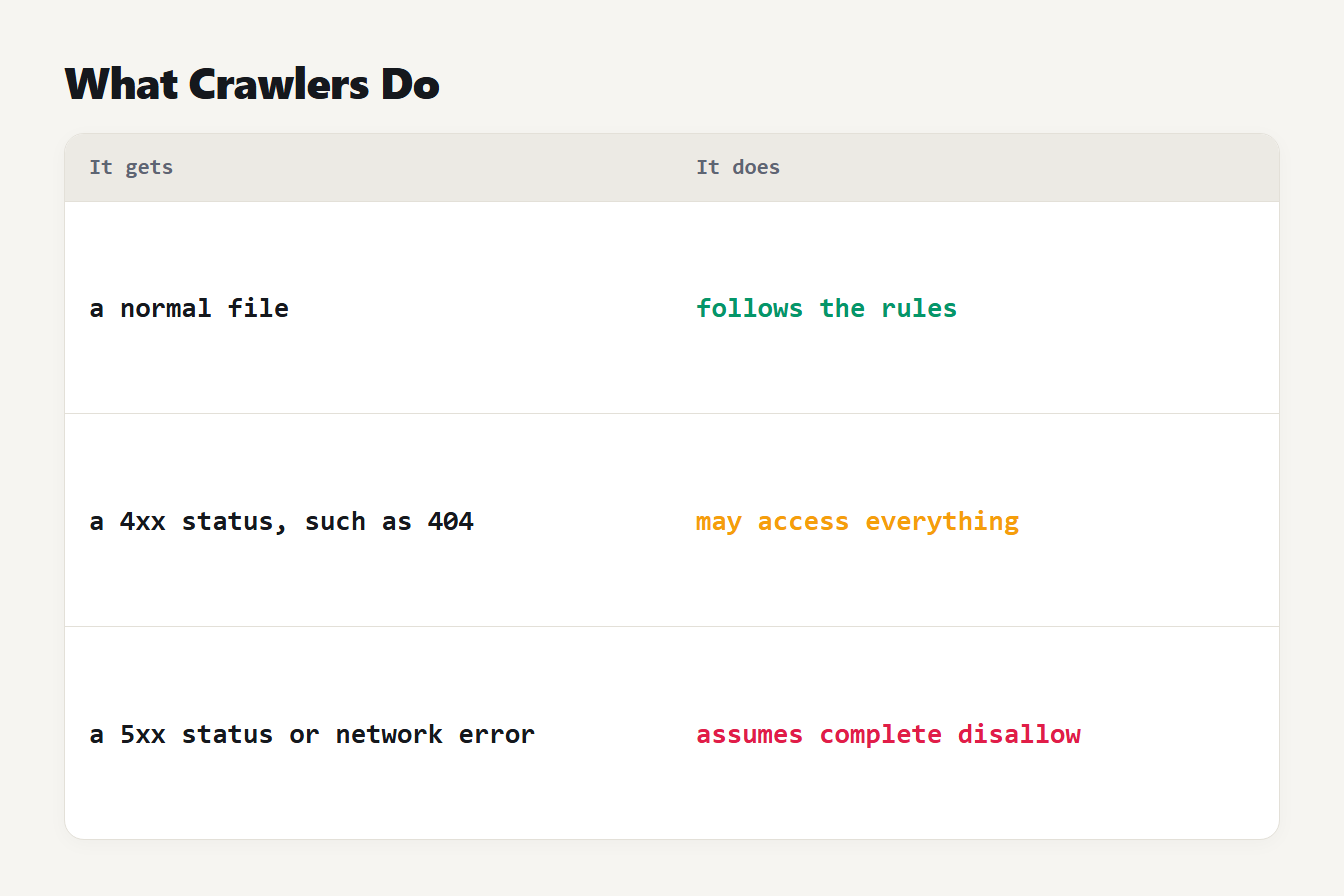
A table of three cases. A normal file means the crawler follows the rules. A 4xx status such as 404 means the crawler may access everything. A 5xx status or a network error means the crawler must assume a complete disallow.
Step 2: read the robots.txt warnings
Paste the file into the Robots.txt Tester before you test any URL. It's easy to miss syntax problems by eye, and they decide how every rule below them is read. We fed the tester a deliberately messy file, and it reported four problems:
| Line | What the tester said |
|---|---|
Disallow: /x before any User-agent | It applies to no crawler |
Disallow: private | The path should start with a slash, so it will probably never match |
Crawl-delay: 10 | Google does not support it and ignores the line |
Sitemap: /sitemap.xml | A sitemap needs a full address starting with https:// or http:// |
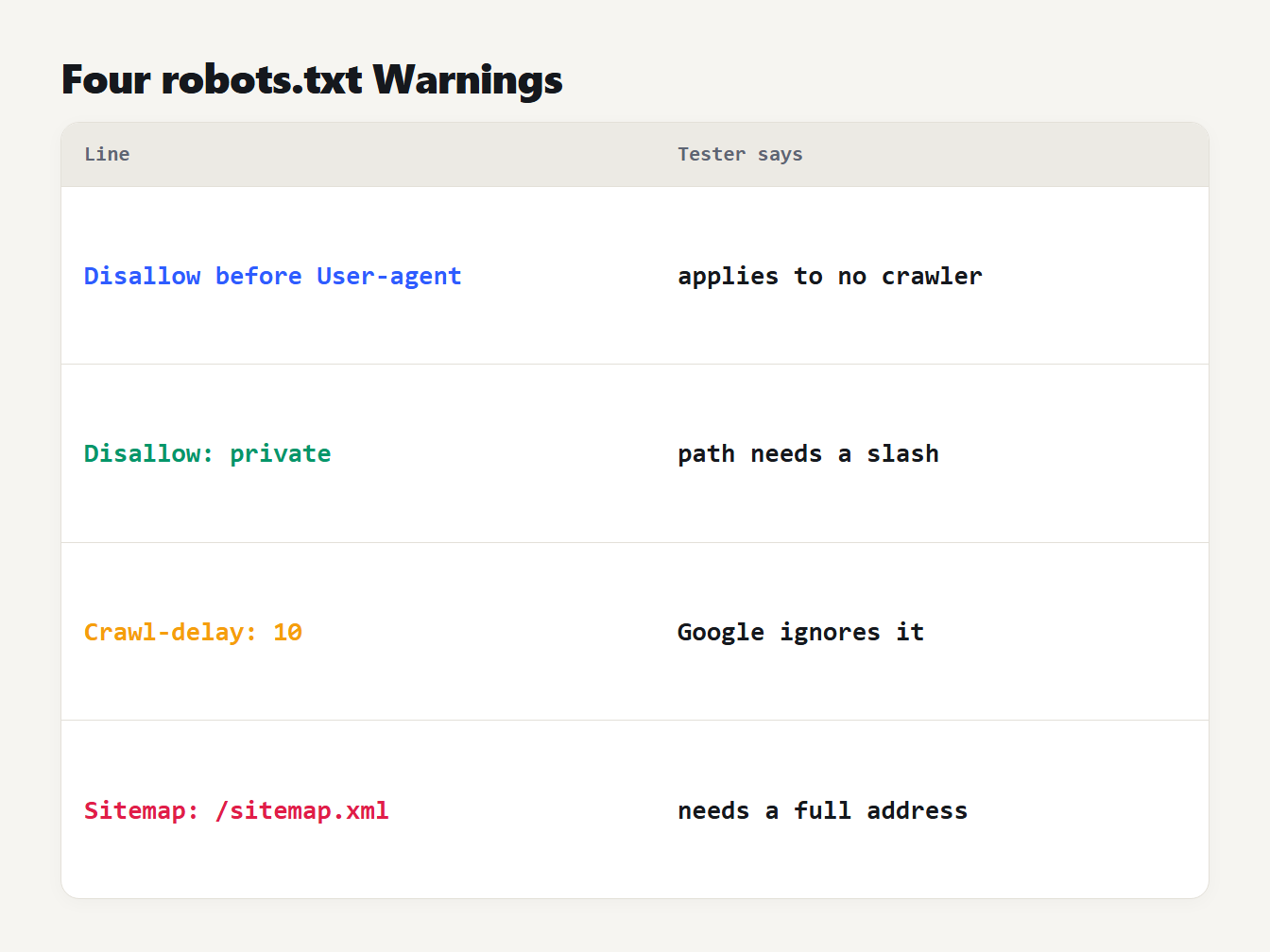
A table of four problem lines and what the tester says: a Disallow before any User-agent applies to no crawler, a path without a slash will probably never match, Google ignores Crawl-delay, and a Sitemap line needs a full address.
Steps 3 and 4: test your URLs for each crawler
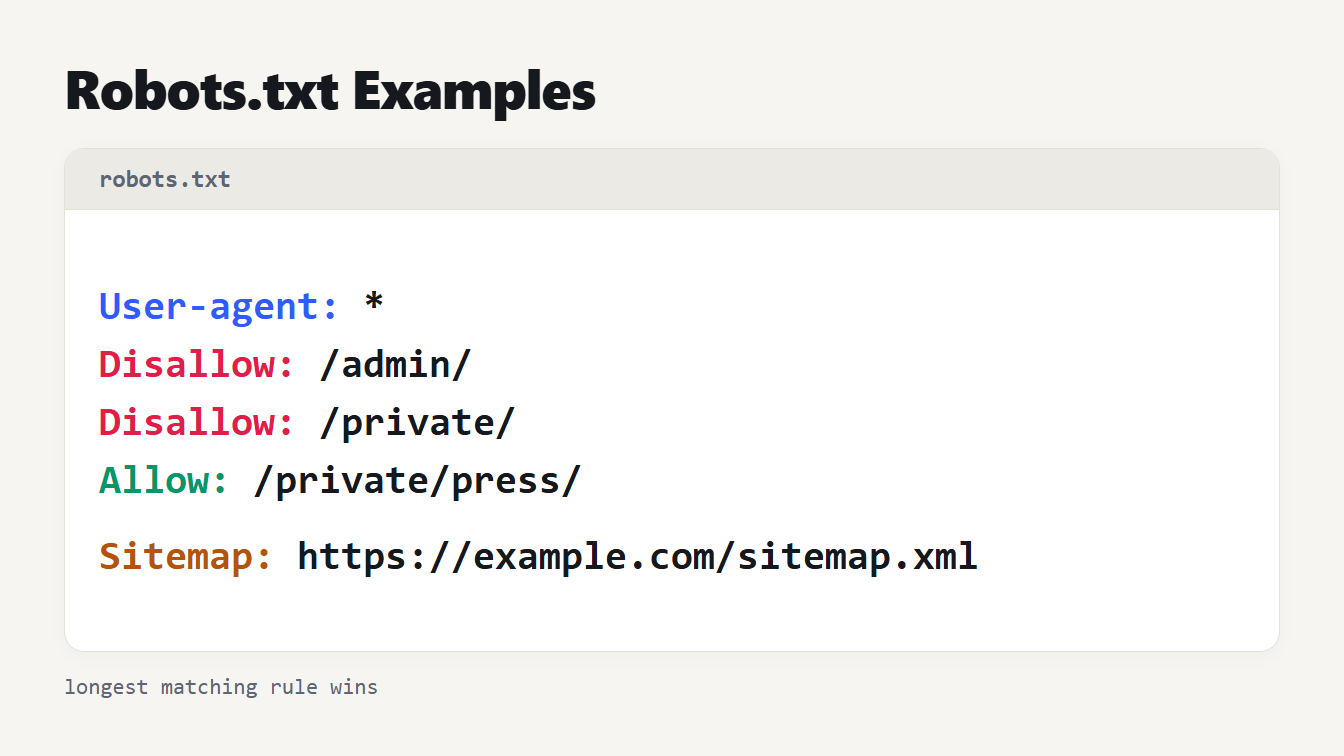
Now the useful part. Take this file, which blocks the admin area, search pages and PDFs for every crawler, keeps one admin page open, and blocks GPTBot from everything:
User-agent: *
Disallow: /admin
Disallow: /search
Disallow: /*.pdf$
Allow: /admin/help

User-agent: GPTBot
Disallow: /

Sitemap: https://example.com/sitemap.xml
We tested ten requests in the tester and recorded the answer and the rule it named:
| Crawler | URL | Result | Why |
|---|---|---|---|
| Googlebot | /admin | Blocked | Disallow: /admin matches |
| Googlebot | /admin-guide | Blocked | The rule matches from the start of the path |
| Googlebot | /admin/help | Allowed | Allow: /admin/help is longer than /admin |
| Googlebot | /blog/post | Allowed | No rule matches |
| Googlebot | /search?q=cats | Blocked | Disallow: /search matches the start |
| Googlebot | /files/price.pdf | Blocked | /*.pdf$ matches the end |
| Googlebot | /files/price.pdf?v=2 | Allowed | The $ means the URL must end there |
| Googlebot | /Admin | Allowed | Paths are case sensitive |
| GPTBot | /blog/post | Blocked | Disallow: / applies to this crawler |
| Googlebot | https://example.com/admin/users | Blocked | A full URL is reduced to its path |
The rule that wins is the longest matching one. RFC 9309 says the most specific match, meaning the one with the most characters, must be used, and that an Allow wins a tie. The order of the lines does not matter, which is why /admin/help is allowed even though a shorter Disallow comes first.
Enter the crawler name as it appears in the User-agent line. Names are matched ignoring case, so googlebot and Googlebot give the same answer, which we checked. Enter * to see what a crawler with no group of its own is told.
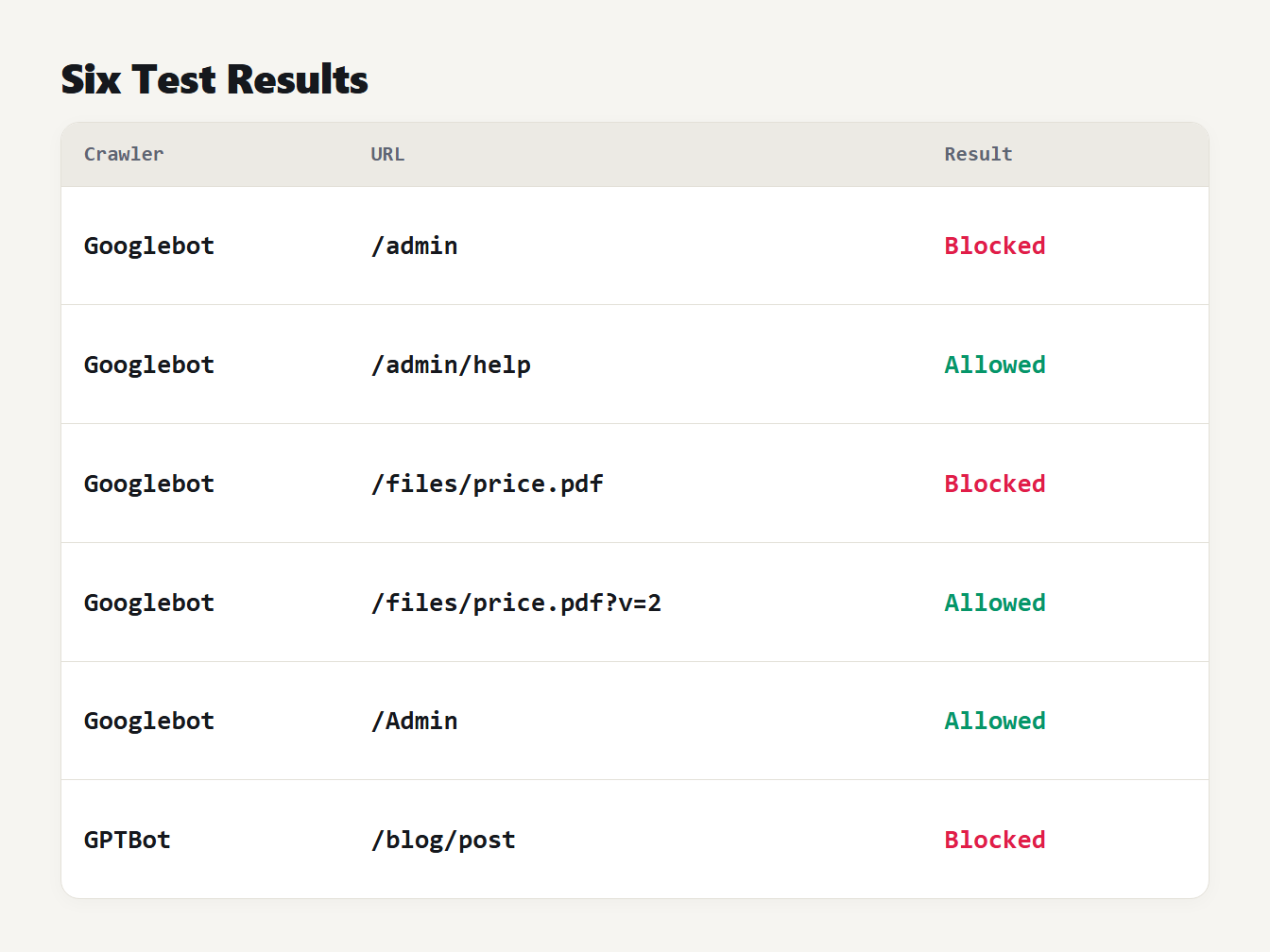
A table of six URLs and their results for the sample file: /admin is blocked, /admin/help is allowed, /files/price.pdf is blocked, /files/price.pdf?v=2 is allowed, /Admin is allowed and GPTBot is blocked on /blog/post.
Why a robots.txt test result can surprise you
Most surprises come from four behaviours. All four are in the standard, and all four showed up in our tests.
A named group does not inherit the star group. Take a file with a group for Googlebot that blocks /beta, then a star group that blocks /private. Googlebot is blocked from /beta but allowed on /private, because it only reads its own group. Bingbot, which has no group, falls back to the star group and is blocked from /private.
Groups with the same name combine. Two Googlebot groups, one blocking /a and one blocking /b, block both.
Paths are case sensitive. Blocking /admin does not block /Admin.
Matching starts at the beginning. Disallow: /admin also blocks /admin-guide, while Disallow: /admin/ does not block /admin. Our guide to robots.txt examples shows more of these prefix cases.
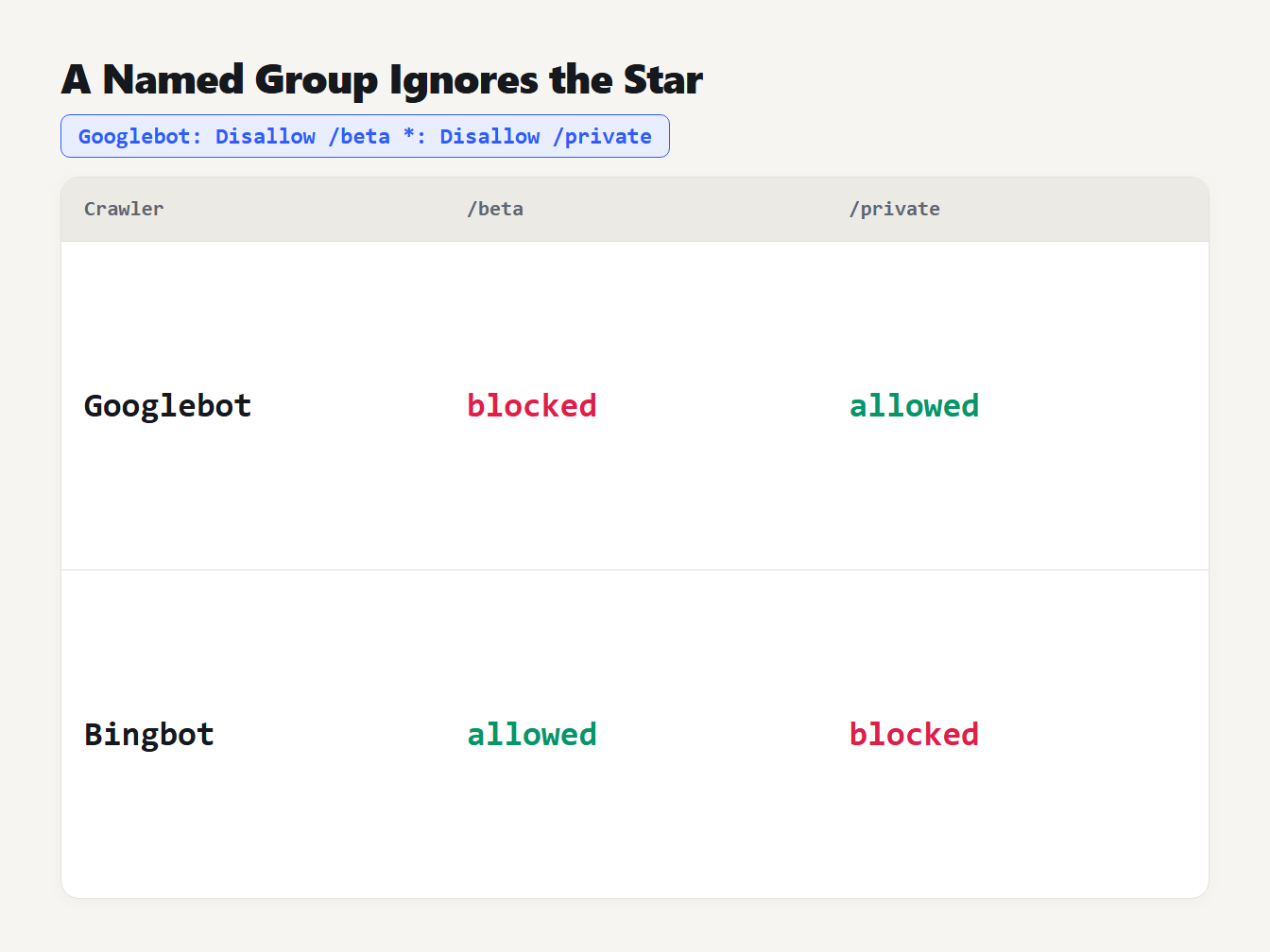
A table for a file with a Googlebot group that blocks /beta and a star group that blocks /private. Googlebot is blocked on /beta and allowed on /private. Bingbot is allowed on /beta and blocked on /private.
What a robots.txt test cannot tell you
A tester shows how the rules read, and no more. A passing test is not the same as a good policy, so check the URLs that earn you traffic, not just the ones you meant to block. It doesn't tell you whether a page is in the index. Robots.txt controls crawling, not indexing, and Google may still index a blocked URL without a description. To keep a page out of results, leave it crawlable and use a noindex tag.
It also follows the standard, so a crawler with its own quirks can differ at the edges. For example, Google ignores Crawl-delay, while some other crawlers read it. And a pasted file is not the live file, so copy the current version from your site before you compare.
Publish robots.txt and confirm the change
After you upload the new file, check that yourdomain.com/robots.txt shows it. Then wait for the cache. Google says its crawlers notice changes and update the cached copy every 24 hours. You can use the Request a recrawl option in the robots.txt report in Search Console to refresh it sooner. The same page notes that the report lets you copy the version Google has, which is a useful check that your upload is the one being read.
How to test robots.txt with the Robots.txt Tester
Here is how to test robots.txt in practice. The Robots.txt Tester applies the RFC 9309 rules in your browser. Paste your file, pick a crawler name, list URLs, and it shows allowed or blocked for each with the rule that decided it. You can paste a change before you publish, and nothing is uploaded. If you don't have a file yet, build one with the Robots.txt Generator and list your pages in the XML Sitemap Generator.
Frequently asked questions
How do I test a robots.txt file?
Open yourdomain.com/robots.txt to confirm it loads, then paste it into a robots.txt tester and check the URLs you care about for each crawler. Read the rule that decided each result, fix any warnings, and only then publish.
What happens if my robots.txt returns a 404 or a server error?
Under RFC 9309, a 4xx response means the crawler may access everything, as if there were no file. A 5xx or unreachable file means the crawler must assume everything is disallowed, so a server error can stop crawling entirely.
How long does Google take to see a robots.txt change?
Google says its crawlers update the cached copy every 24 hours. If you need it sooner, use the Request a recrawl option in the robots.txt report in Search Console.
Why is a URL allowed when I blocked its folder?
Usually the rule is in a different group, the path differs in letter case, or a longer Allow rule wins. Rules match from the start of the path, are case sensitive, and the longest matching rule decides.
Does blocking a URL in robots.txt remove it from search?
No. Robots.txt controls crawling, not indexing. A blocked URL can still appear without a description. To keep a page out of results, leave it crawlable and use a noindex tag.
Test your robots.txt before the next deploy
Copy your live file and paste it into the Robots.txt Tester. Then check five URLs: your home page, your most important category, one page you block on purpose, one you allow inside a blocked folder, and your sitemap. If all five answer as you expect, you know how to test robots.txt, and you can publish.