SERP Preview: How to Check Your Title and Description Before You Publish
Use a SERP preview to see how your title and description may look in Google: pixel width, what gets cut, and when Google rewrites a title. Tested on 134 titles.
By TheTextKit TeamPublished
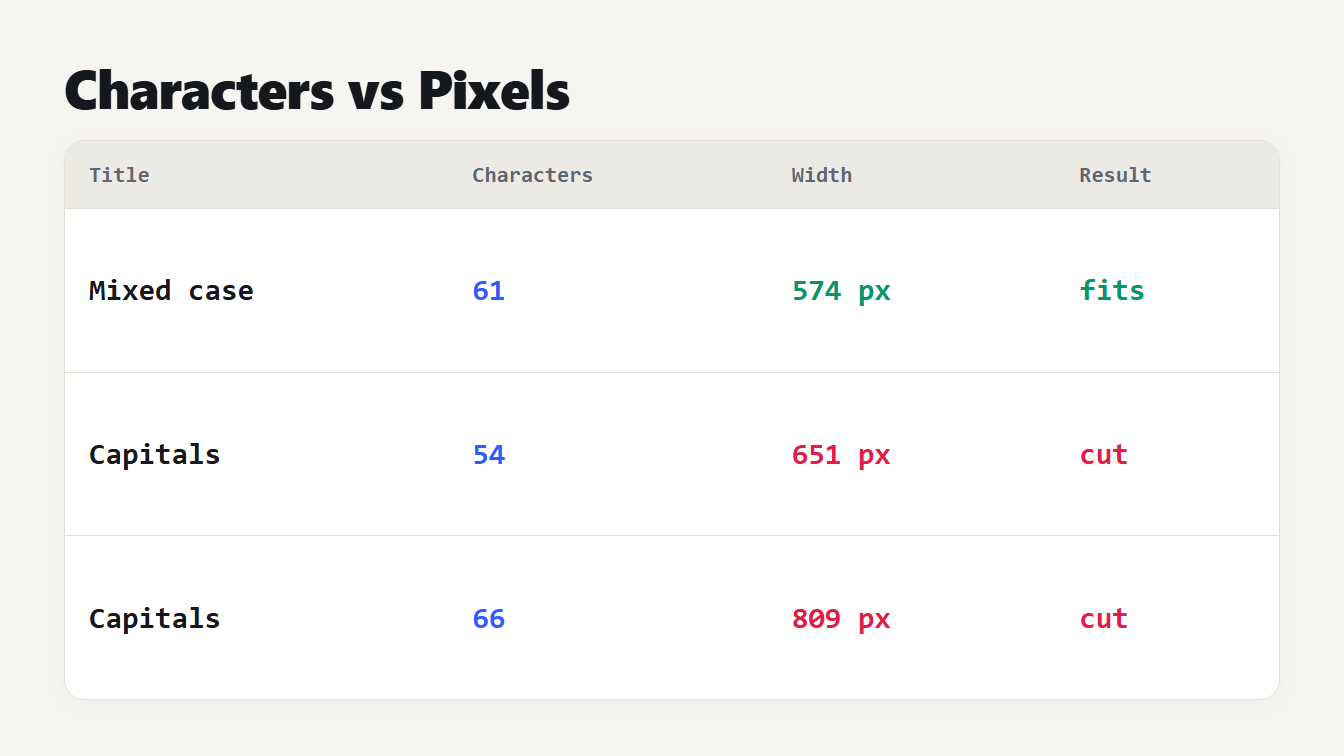
A table of three page titles measured in characters and in pixels against a 600 pixel planning line. A 61 character mixed-case title is 574 pixels and fits. A 54 character capitals title is 651 pixels and is cut. A 66 character capitals title is 809 pixels and is cut.
A SERP preview shows how a page's title, address and description may look in a search engine results page, before the page is public. You type in your own text and read the mock-up, mainly to see whether the title will be cut short. The catch is that nobody outside Google knows exactly where it cuts, so a good preview is an estimate with its assumptions showing. This guide explains how to use one, what each line of a result is, how our tool measures a title in pixels, and what we found when we measured all 134 of our own titles.
How to use a SERP preview
- Open the SERP Preview tool.
- Enter your page title, your meta description and the page address.
- Read the title's width. Under the 600 pixel planning line it should fit. Over it, the preview shows where it is cut and ends the title with
.... - Read the description against its character guide, and check that the main point is in the first 100 characters.
- Switch to the phone view to see the shorter guides, then edit and recheck.
To write the tags once the text is settled, the Meta Tag Generator builds the HTML for you. For a plain character total with presets for titles and descriptions, use the Character Limit Checker.
What a search result is made of
A result has four parts, and only some of them are yours to set:
| Part | Where it comes from |
|---|---|
| Site name | Chosen by Google from the home page and other signals. You can hint at it with WebSite structured data |
| Address line | The page URL, or the trail from breadcrumb markup if the page has it |
| Title link | Usually your <title>, but Google can use other sources |
| Snippet | Made from the page text, sometimes from your meta description |
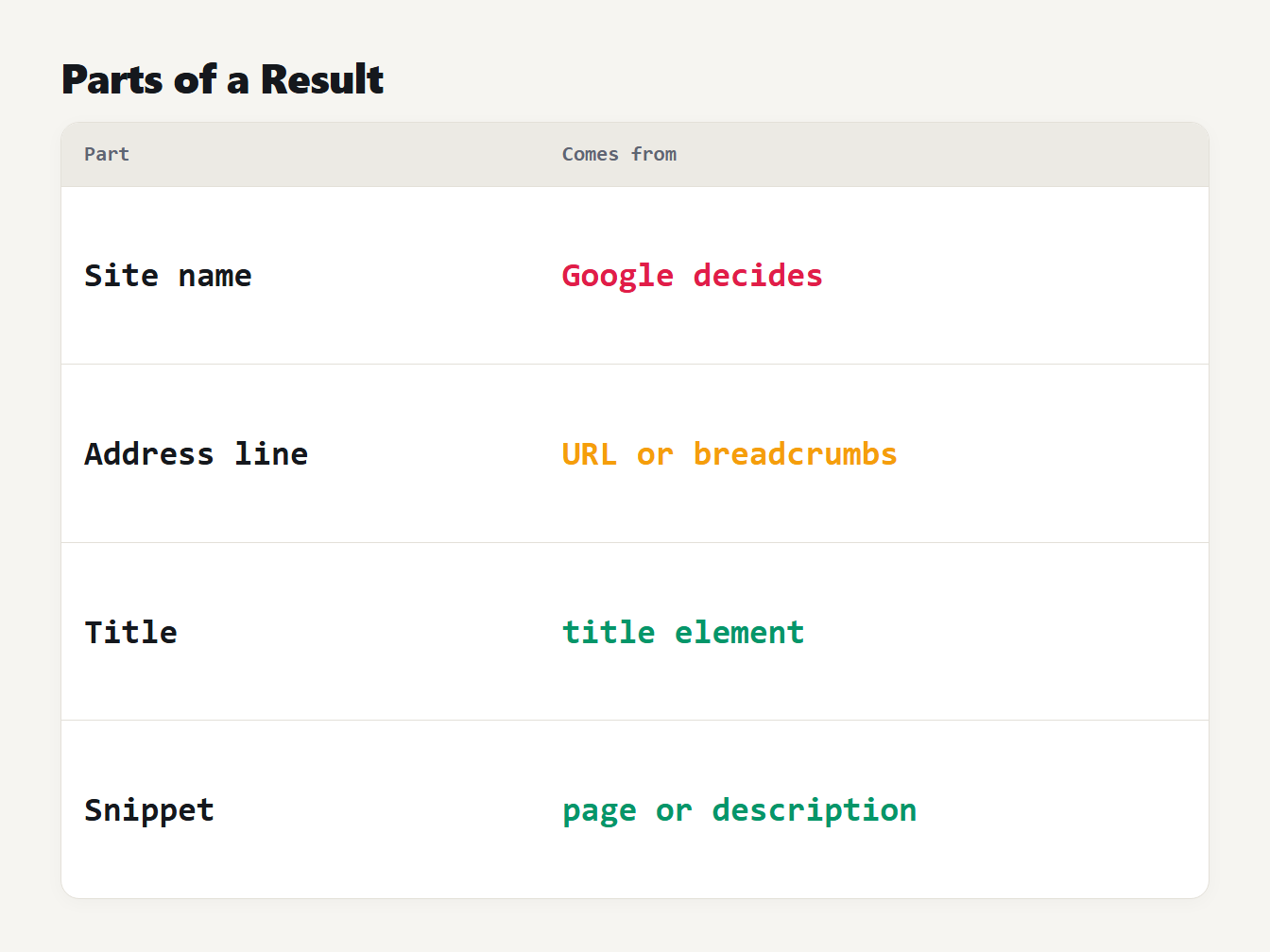
A table of the four parts of a search result and what decides each. The site name is chosen by Google. The address line comes from the URL or breadcrumb markup. The title link usually comes from the title element. The snippet comes from the page text or the meta description.
The details come from Google's own pages. Site names are generated automatically from the home page and references to it, and you cannot set one directly. Breadcrumb markup lets Google show a page's place in your site. Our preview draws the address as the site followed by the path pieces, such as https://example.com › blog › seo-tips, and leaves out the query and the fragment. It cannot know your site name or breadcrumb markup, so the first line is a stand-in.
Why the title is measured in pixels
Google's title link guide says a title has no length limit and that the title link is truncated as needed, typically to fit the device width. Width is the key word. Sixty narrow letters take much less room than sixty wide ones, so a count of characters is only a rough guide.
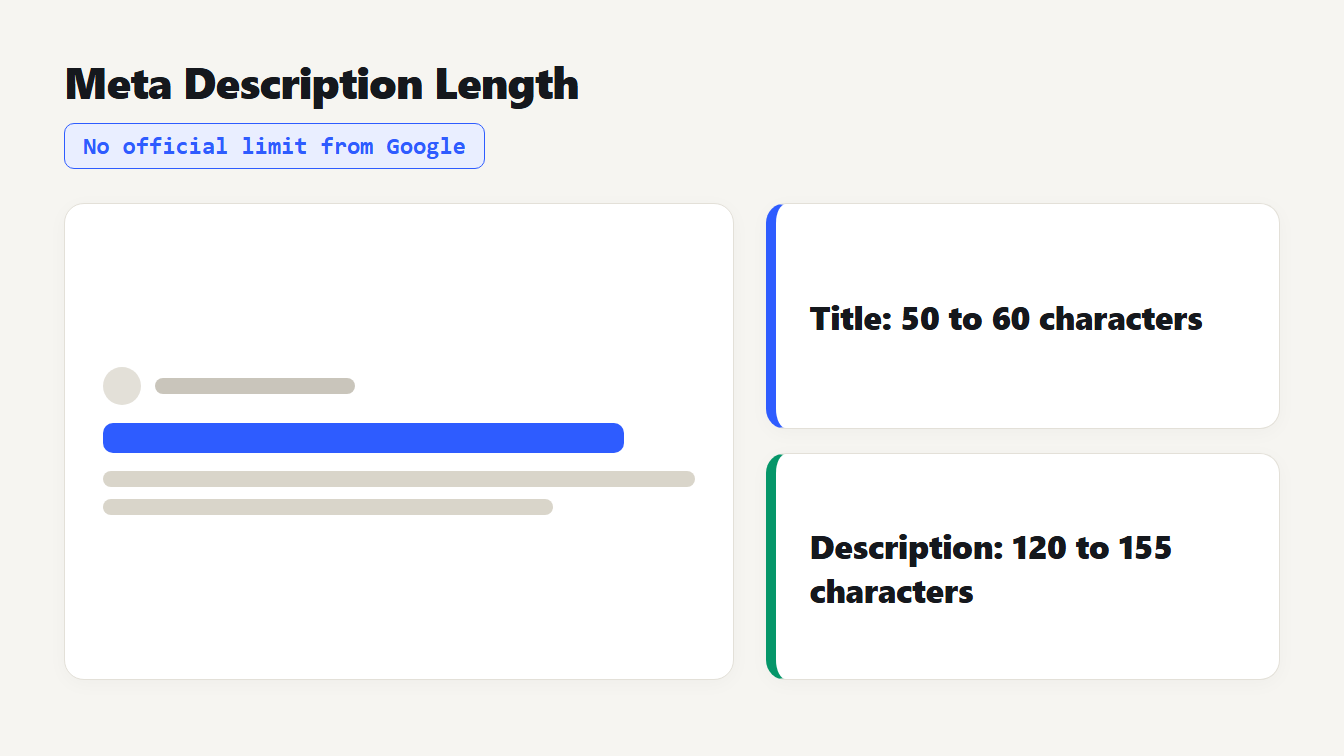
Our tool therefore uses a common planning model: the title is set in Arial at 20 pixels and cut at 600 pixels. This is a third-party figure, not Google's. Our guide to meta description length measures the same model on 60 characters of one letter. It gave 267 pixels for i and 1,133 for W.
Here is what that means for three real titles, with their widths from the tool:
| Title | Characters | Width | Result |
|---|---|---|---|
| Free Online Text Tools: Word Counter, Case Converter and More | 61 | 574 px | Fits |
| WHAT GRADE DO I NEED ON MY FINAL? FORMULA AND EXAMPLES | 54 | 651 px | Cut |
| BEST FREE ONLINE TEXT TOOLS: WORD COUNTER, CASE CONVERTER AND MORE | 66 | 809 px | Cut |
The first has 61 characters, one over the usual 60, and still fits. The second looks short at 54 and does not. The preview ends the cut title with ..., and the cut is the longest start that still fits with the dots.
What 134 of our own titles look like
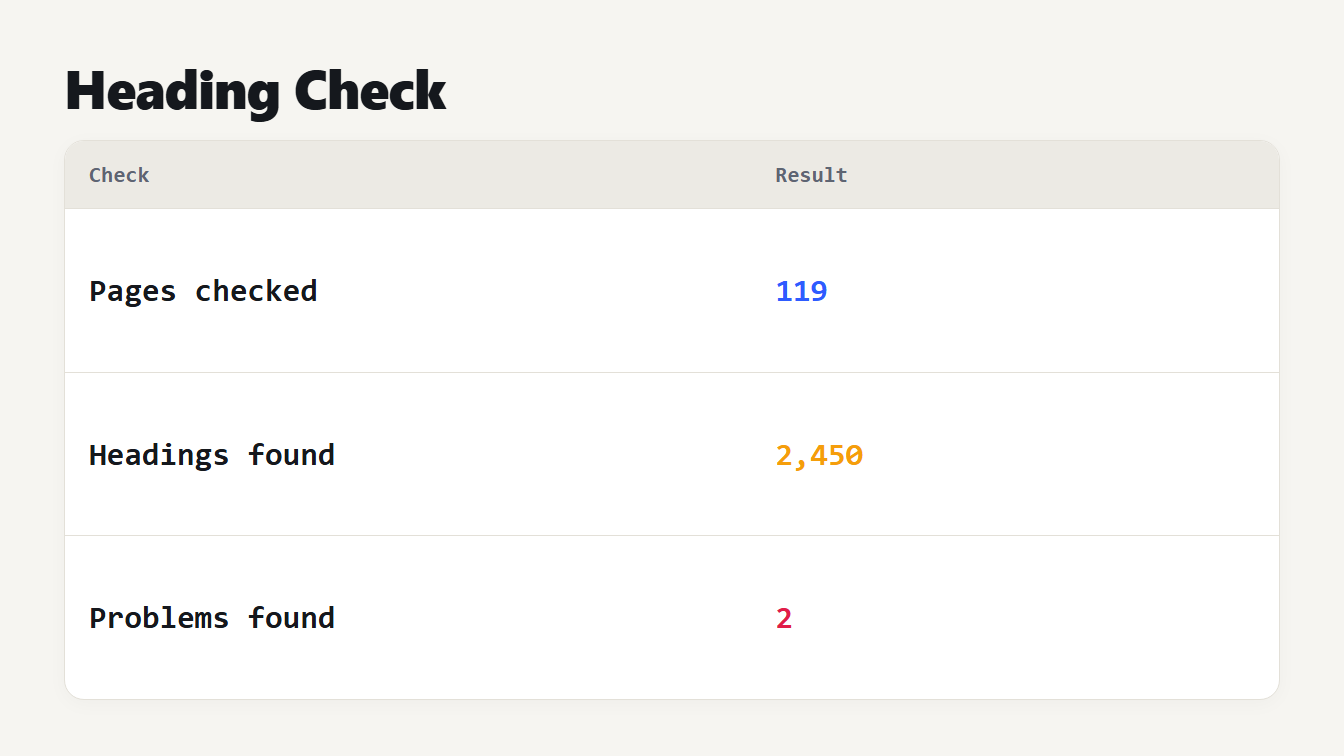
To see how this works in practice, we measured every title on TheTextKit when we wrote this. That was 67 blog posts, using the title shown in search with the brand name where it fits, and 67 tool pages.
| Measure | Result |
|---|---|
| Titles measured | 134 |
| Longest title | 60 characters |
| Widest title | 594 px |
| Narrowest title | 386 px |
| Mean width | 520 px |
| Over 600 px | 0 |
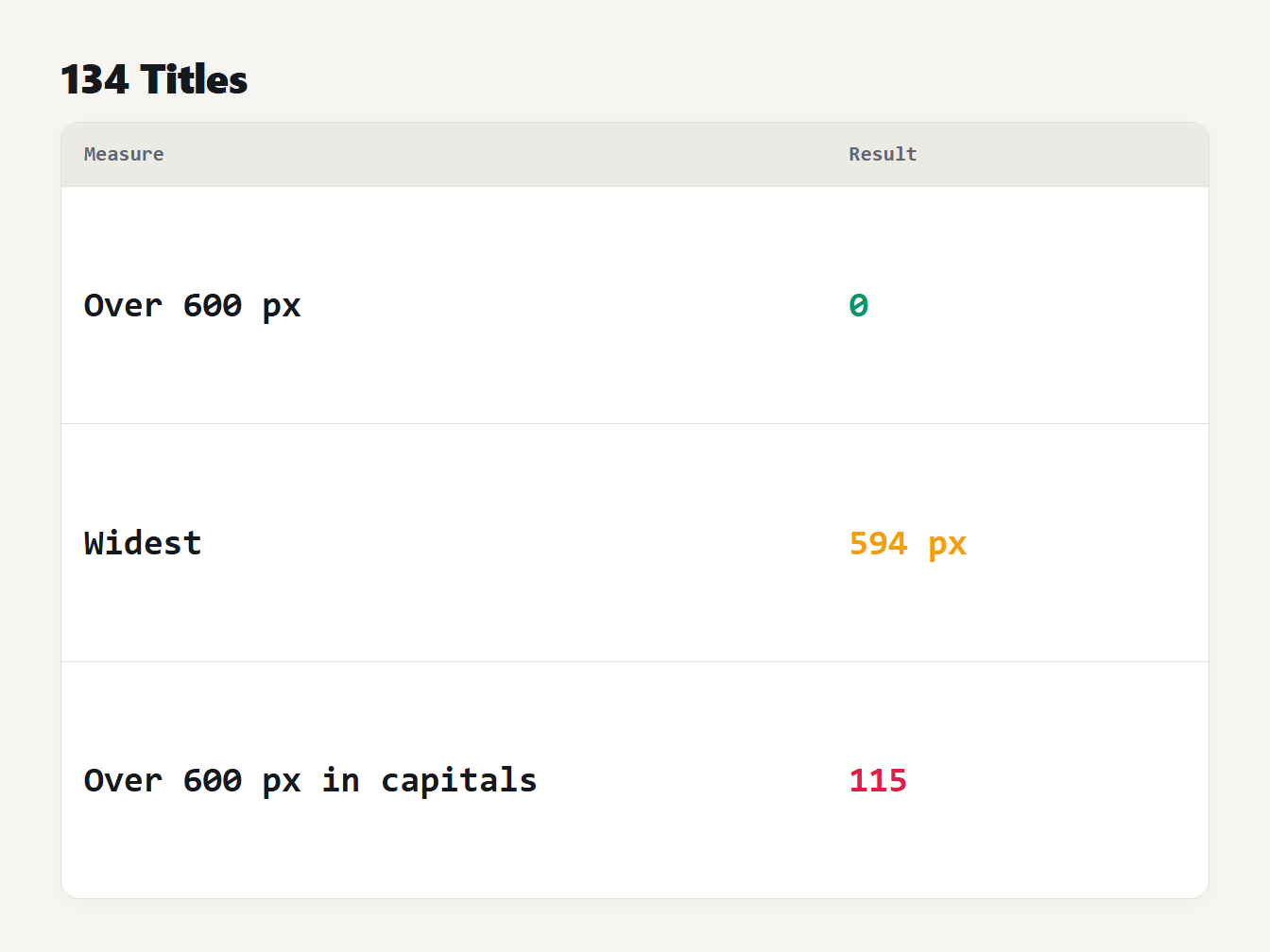
A table of results for the 134 titles on TheTextKit. All 134 fit in 600 pixels. The widest is 594 pixels. If the same titles were written in capital letters, 115 of the 134 would be wider than 600 pixels.
All 134 fit, because we wrote them to a 60 character rule. The widest has 6 pixels to spare, so a single wider word would have cut it, which a character count would not have shown. The same titles in capital letters tell the other side. Set in capitals, 115 of the 134 would be wider than 600 pixels, and the widest would reach 733. Capital letters are the reason a character rule can pass a title that a pixel rule would cut.
When Google shows something else
A preview shows your text. Google decides what to show. Its title link guide lists the sources it uses, which are the <title> element, the main visible title, headings such as the <h1>, og:title, and prominent text and anchor text. It says it may build a different title when it finds a problem. These are the problems it names, and the fix for each:
| What Google says it may rewrite | What to do |
|---|---|
| Missing parts, such as a delimiter with no name | Complete the title |
| An out-of-date date or year | Remove it or update it |
| A title that does not match the page | Make it describe the page, and match the <h1> |
| The same title across many pages | Give each page its own title |
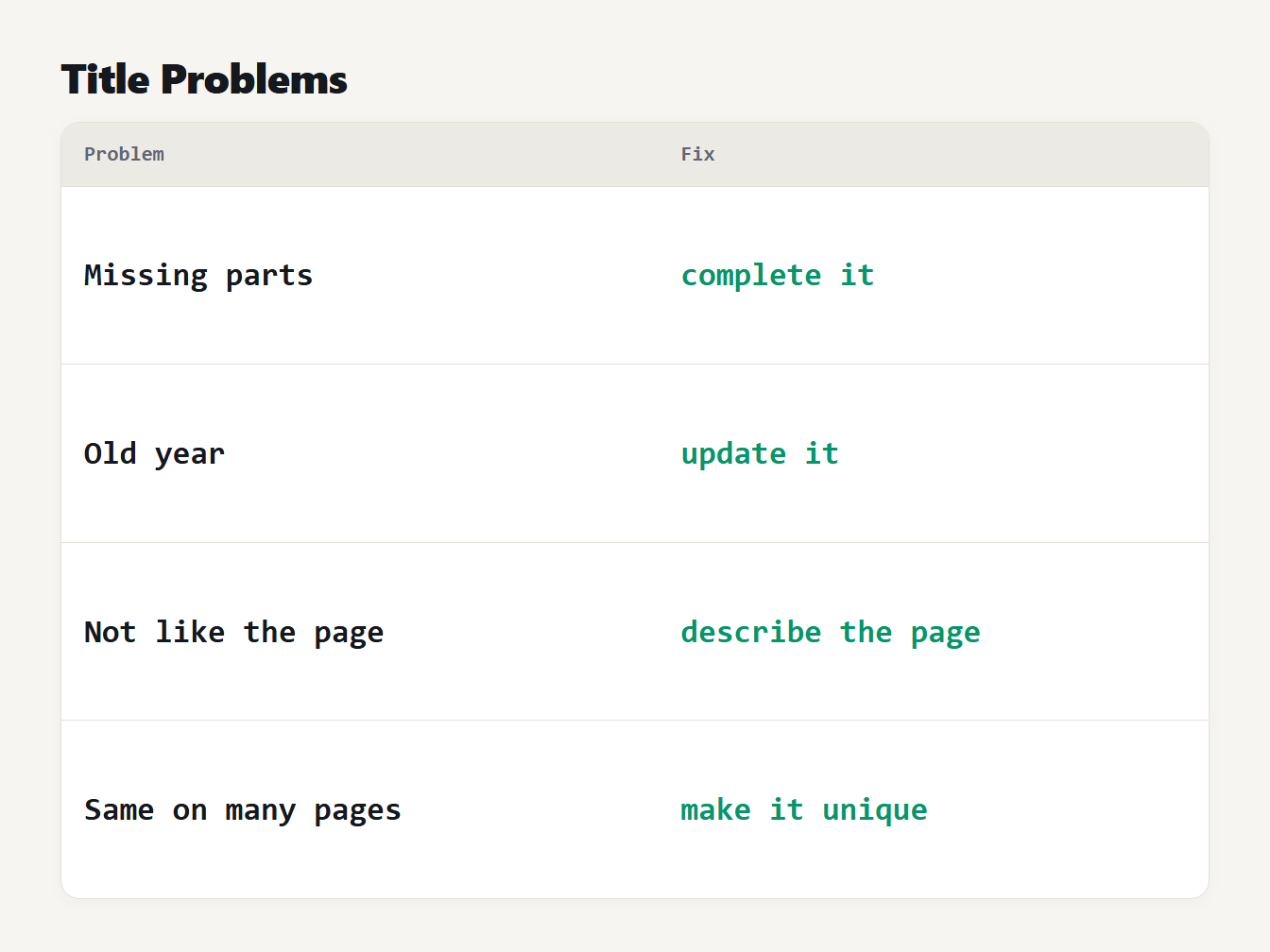
A table of four title problems named in Google's guide and the fix for each. Missing parts: complete the title. An old date: remove or update it. A title that does not match the page: describe the page. The same title on many pages: make each one unique.
The same goes for the description. Google's snippet guide says snippets are created automatically from the page, and that it uses the meta description only when it describes the page better than the text does. A preview of a description is therefore a preview of what you hope for.
Descriptions and phones
Descriptions and phone titles are counted in characters, not pixels, because we have no measured model for them. The tool uses about 155 characters on desktop and 120 on phones for descriptions, and 55 for a phone title. These are rules of thumb. Google publishes none of them, and the preview says so beside every result. The advice that does not depend on any figure is to put the main point first, so that a shorter cut still says something.
How we tested it
We checked the tool three ways.
- Against published widths. The meta description guide lists measured widths for ten texts, from 60 letters of
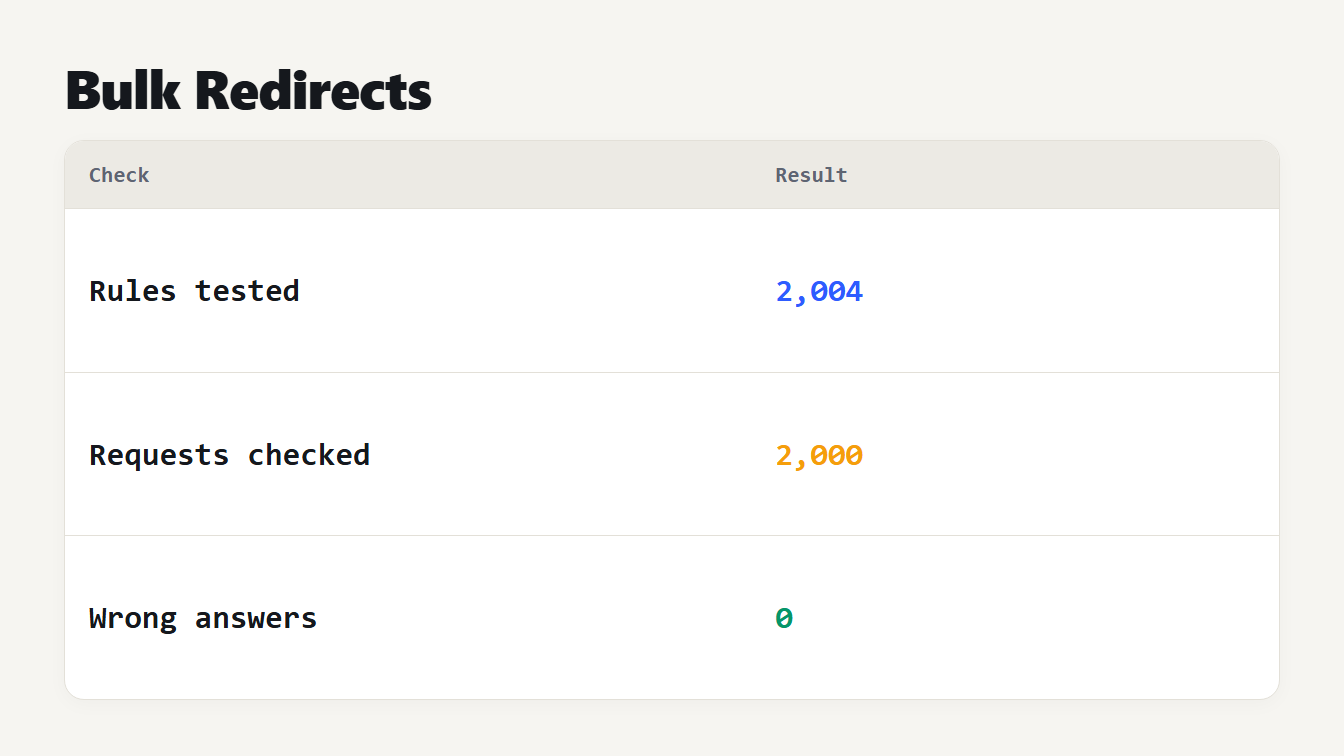
ito 60 ofWand six real titles. We typed all ten into the tool in a real browser. All ten matched to the pixel. - Against brute force. The cutting code was tested on five texts, including 30 emoji, at five widths each. For each of the 25 cases, a slow search tried every possible start and kept the longest that fits with the dots. The tool's cut was the same each time, and the result always fit.
- On characters that take two units. A title of 60 emoji was cut without a broken character, because the code counts and cuts by whole characters.
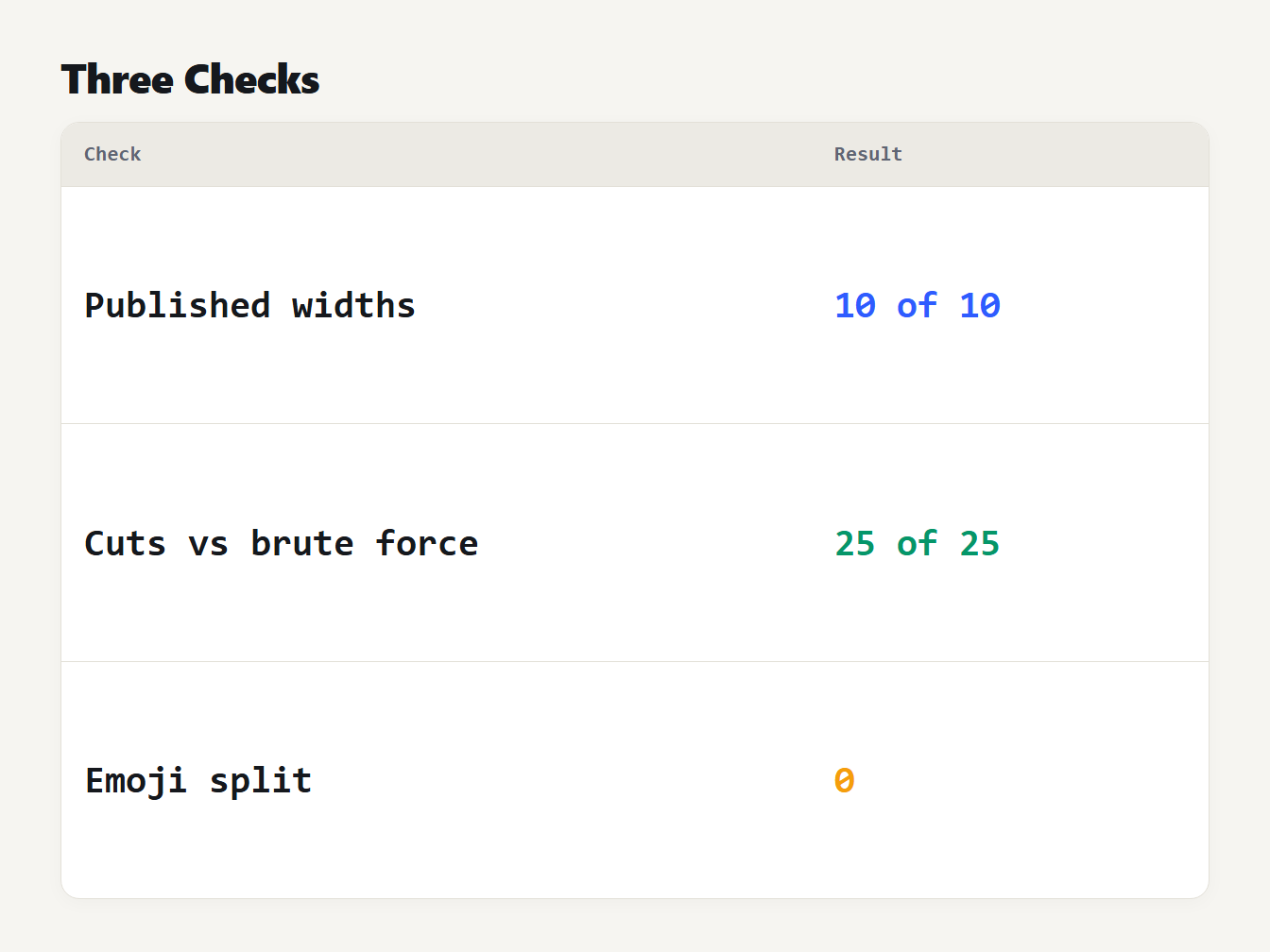
A table of three checks of the SERP preview tool. All 10 published widths matched to the pixel. All 25 cuts matched a brute force search. No emoji was split in half.
The limit is the model. The tool measures with the browser's Arial, and a device without it uses a similar font, so widths can differ by a few pixels. All of it rests on a planning line, not on anything Google has said.
Frequently asked questions
What is a SERP preview?
A SERP preview is a mock-up of how a page may appear in a search engine results page: the site and address, the title link and the description snippet. You type or paste your own title, description and address, and the tool shows how they might look and where they might be cut.
How long can a title be in Google?
Google gives no limit. It says a title link is truncated as needed, typically to fit the device width. Many SEO guides plan for about 600 pixels on desktop, which is roughly 50 to 60 characters, but capital letters and wide characters use more room.
Is a SERP preview exact?
No. It is an estimate. Google does not publish its font, size or limits, and it can write a different title or snippet from the page. A preview shows risks, such as a title that is far too wide, and cannot promise what Google will show.
Why does Google show a different title from mine?
Google says it may build a better title from the page's headings, anchor text or other sources when a title has a problem. Examples are a missing part, an out-of-date year, a title that does not match the page, or the same title repeated on many pages.
Is my text uploaded?
No. The preview is drawn in your browser, and the text and address are not sent anywhere or stored. The tool needs no account and keeps nothing after you close the page, so it is safe for unpublished titles and drafts.
Preview your title now
Open the SERP Preview tool, enter your title, description and address, and read the width. Everything runs in your browser, so your text is never uploaded.