How to Check if a Page Is Indexed: 5 Ways That Work
Learn how to check if a page is indexed with Search Console, the site: operator and a live test. We ran 119 pages through five checks and compared the result.
By TheTextKit TeamPublished
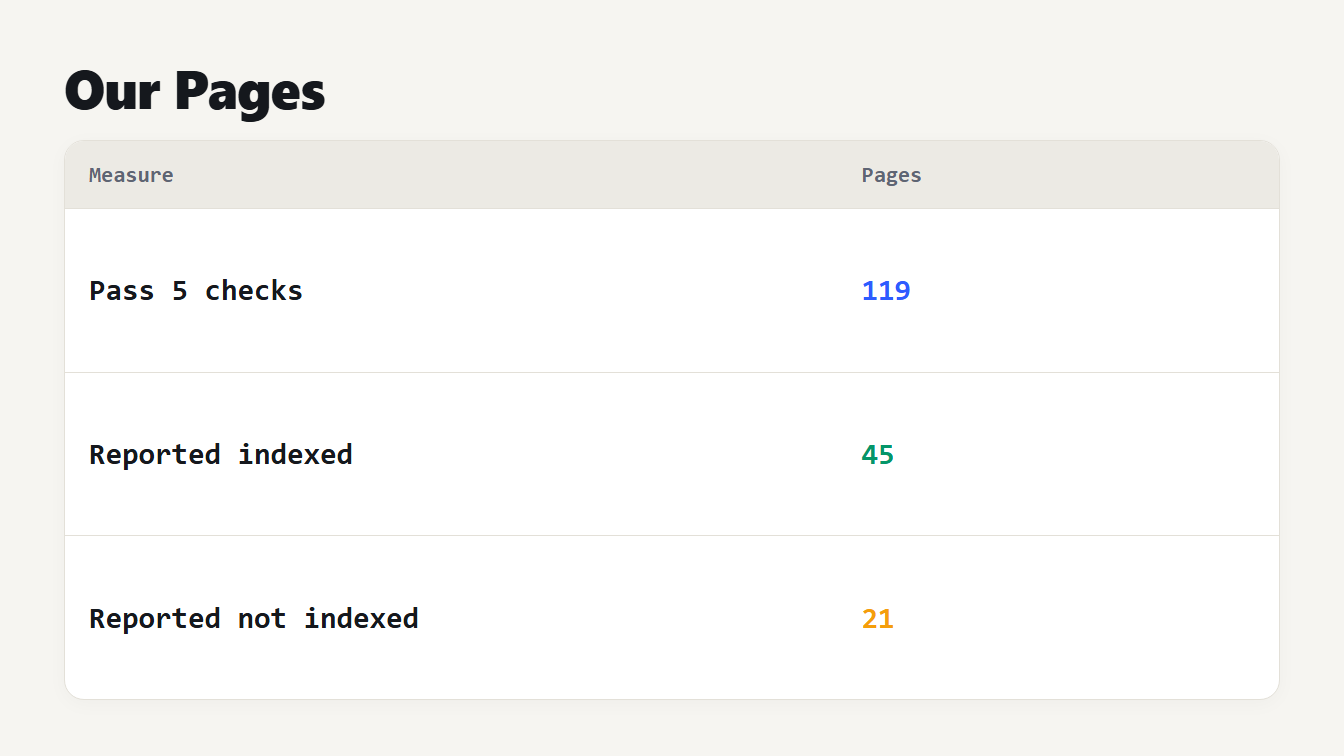
A table of three numbers for a 119 page site. All 119 pages passed five technical checks. Search Console reported 45 pages as indexed. It reported 21 pages as not indexed.
The most reliable way to check if a page is indexed is the URL Inspection tool in Google Search Console. Paste the address into the search bar at the top and it tells you whether the URL is on Google, using the most recently indexed version of the page. If you do not own the site, search for the exact address on Google instead. To see what these checks tell you in practice, we ran all 119 pages of our own site through five technical tests and compared the result with what Search Console reported.
Five ways to check if a page is indexed
| Way | Best for |
|---|---|
| URL Inspection | One page, with details |
| Page indexing report | Counts and reasons for a whole site |
site: query | A quick look, not a count |
| Searching the exact address | Whether it shows up in results |
| Live test | Checking a fix before it is reindexed |
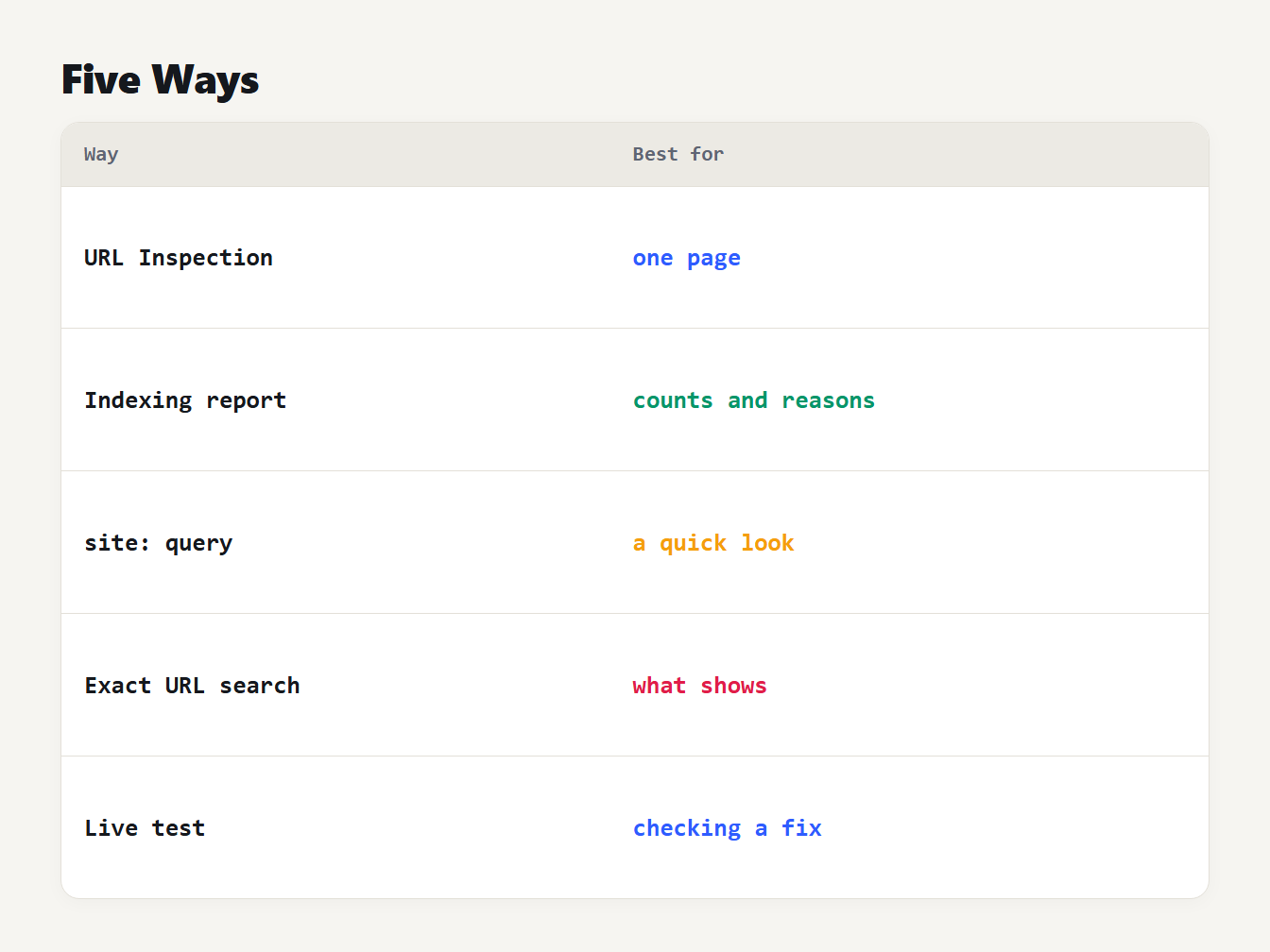
A table of five ways to check indexing and what each is best for. URL Inspection suits one page. The Page indexing report gives counts and reasons. A site query is a quick look. An exact address search shows whether the page appears. The live test checks a fix.
1. URL Inspection
Type the full address into the inspection bar at the top of any Search Console screen. The URL must belong to the property you have open. Google's URL Inspection help says the tool shows information about Google's indexed version of the page, not the live page.
We inspected our UTM Builder page. It showed a green check and the words "URL is on Google", and the Page indexing row said "Page is indexed". Here is how Google says to read the two main answers.
| What it says | What it means |
|---|---|
| URL is on Google | Eligible to appear, not guaranteed |
| URL is not on Google | Cannot appear in results |
| Live test | Can differ from the indexed copy |
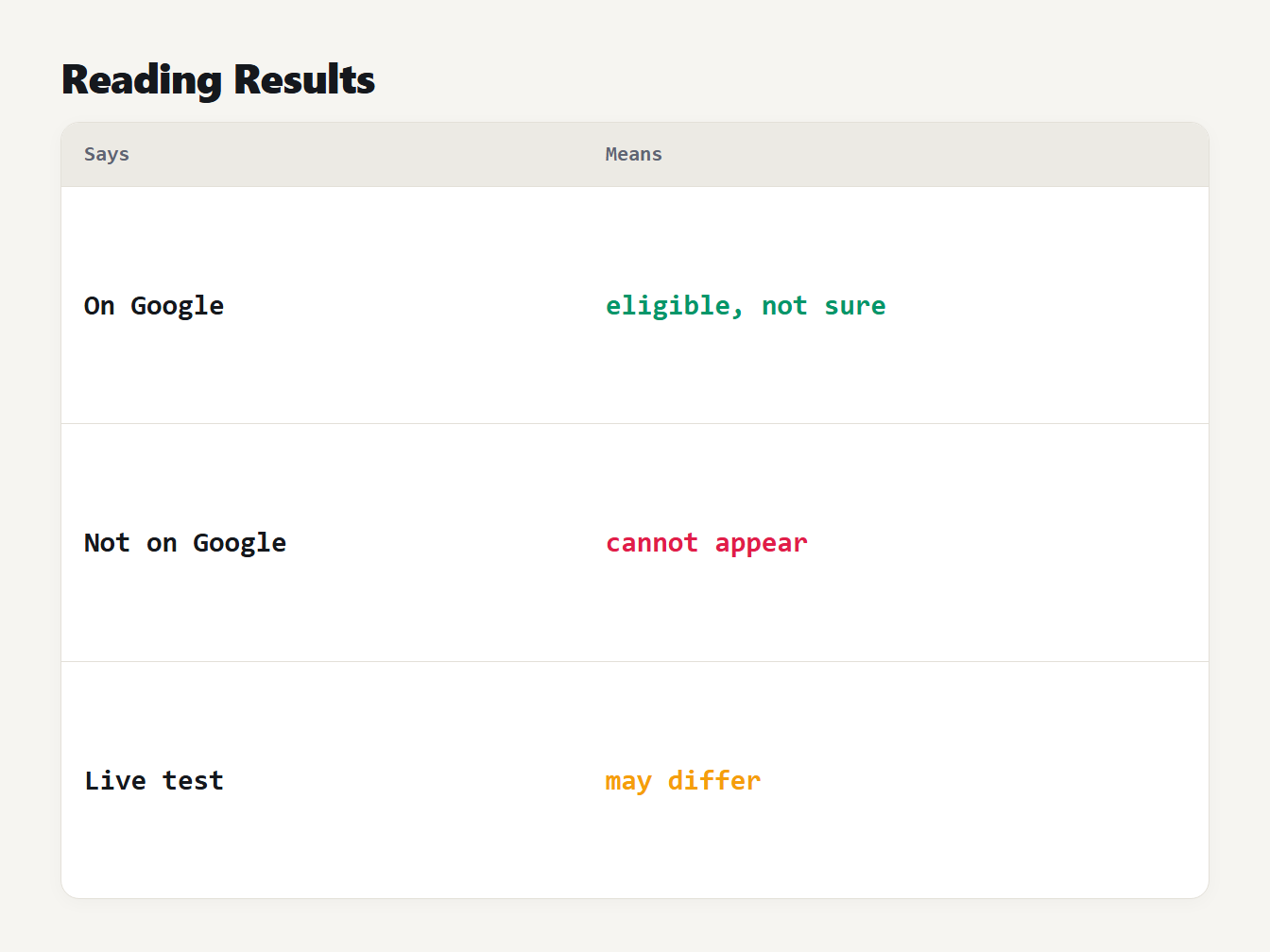
A table of three answers in the URL Inspection tool. URL is on Google means the page is eligible to appear, not guaranteed. URL is not on Google means it cannot appear. The live test can differ from the indexed copy.
Expand the Page indexing section for more. Discovery says how Google found the URL. Crawl shows when it was crawled and any obstacles, and for a page that is not on Google the reason is usually found there. Indexing shows the canonical Google chose. Google also notes a daily limit on inspections for each property.
2. The Page indexing report
For a whole site, open the Pages report. It splits your URLs into indexed and not indexed and lists a reason for each group. Ours showed 45 indexed pages and 21 not indexed, all 21 under one reason: Discovered - currently not indexed, with validation not started. Our guide to discovered, currently not indexed explains what that means and what we did about it.
Notice that 45 plus 21 is 66, while our sitemap lists 119 addresses. The report does not account for every URL you submit, so treat it as a view of what Google has processed so far, not a full audit of your sitemap.
3. The site: operator
Searching site:example.com shows results from that domain. Google's site: operator guide says it can help you see whether a specific URL is indexed and served, and it warns that the list is not always exhaustive. A URL that is indexed may not show up, so a missing result proves nothing on its own.
| Query | What it shows |
|---|---|
site:example.com | The domain and its subdomains |
site:https://example.com/page | May show whether that URL is indexed |
site:https://example.com/ word | Which pages can show for the word |
Any site: query | Not a complete list |
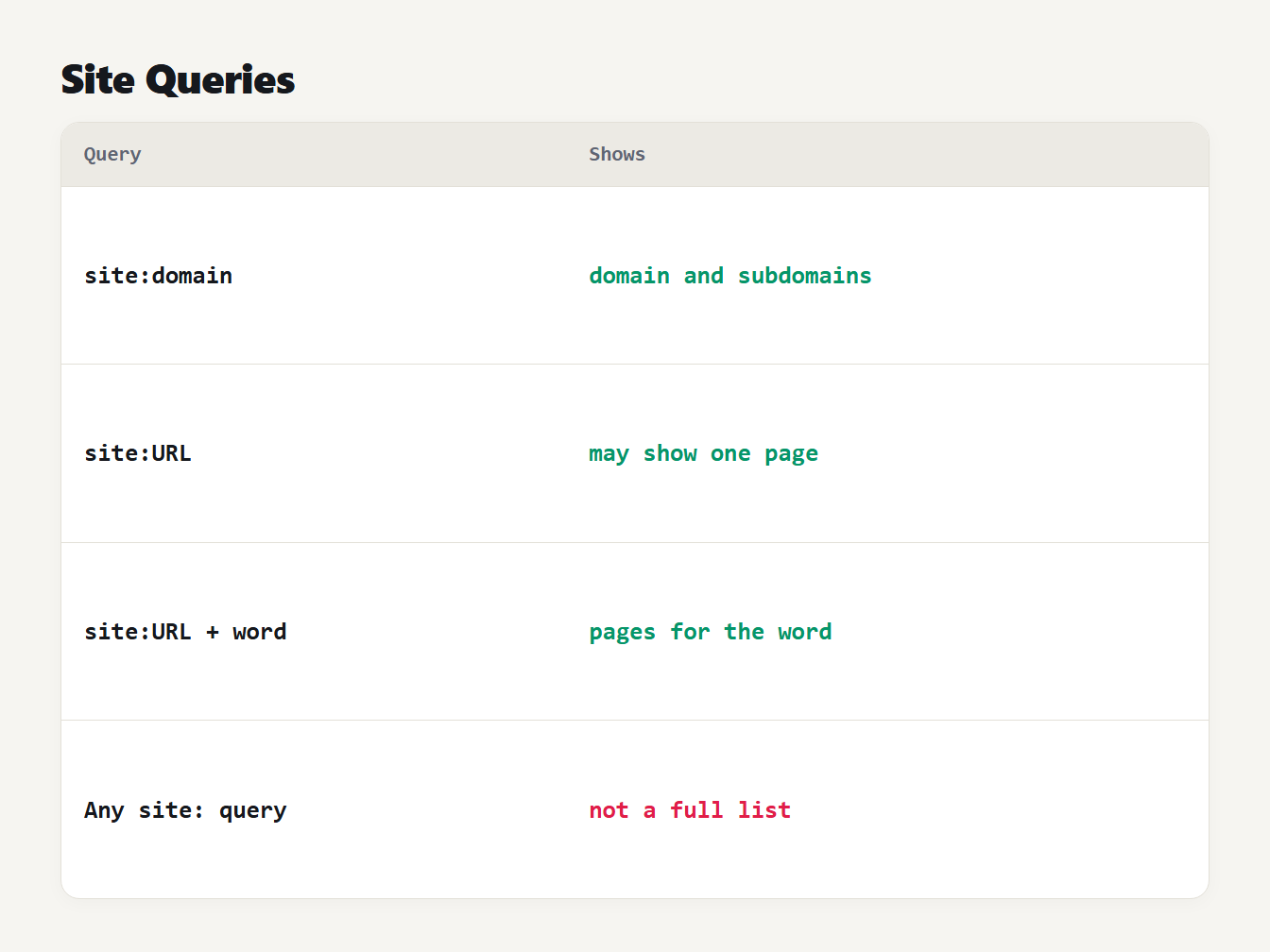
A table of four site: queries. The domain query shows the domain and its subdomains. A URL query may show whether that URL is indexed. A query with a word shows which pages can show for it. No site: query gives a complete list.
Two details trip people up. The query site:https://www.example.com does not return the same results as site:https://example.com/, so use the exact version your pages live on. And a site: query with no search words does not rank the results.
4. Search for the exact address
Google's help says that "URL is on Google" does not guarantee the page will appear in results. For a definitive test of whether it is appearing, it says to search for the page URL on Google. That makes this the check that matches what a visitor sees. If the address does not come back, try a distinctive phrase from the page together with the site name.
5. The live test
After you fix a problem, such as removing a noindex tag, the indexed copy still shows the old state until Google crawls again. Click Test live URL and Google fetches the page now. Google says the live test does not check sitemaps or referring pages, and it does not test for duplicates, so a page can pass the live test and still not be chosen. It also cannot tell you whether the tested version would be treated as the canonical.
Indexable is not the same as indexed
Before you blame the page, run a pre-flight check. We requested all 119 URLs in our live sitemap and tested five things for each.
| Check | Our pages that passed |
|---|---|
| Returns status 200 | 119 of 119 |
| No noindex in the X-Robots-Tag header | 119 of 119 |
| No noindex in a meta robots tag | 119 of 119 |
| Canonical points to the page itself | 119 of 119 |
| Not blocked in robots.txt | 119 of 119 |
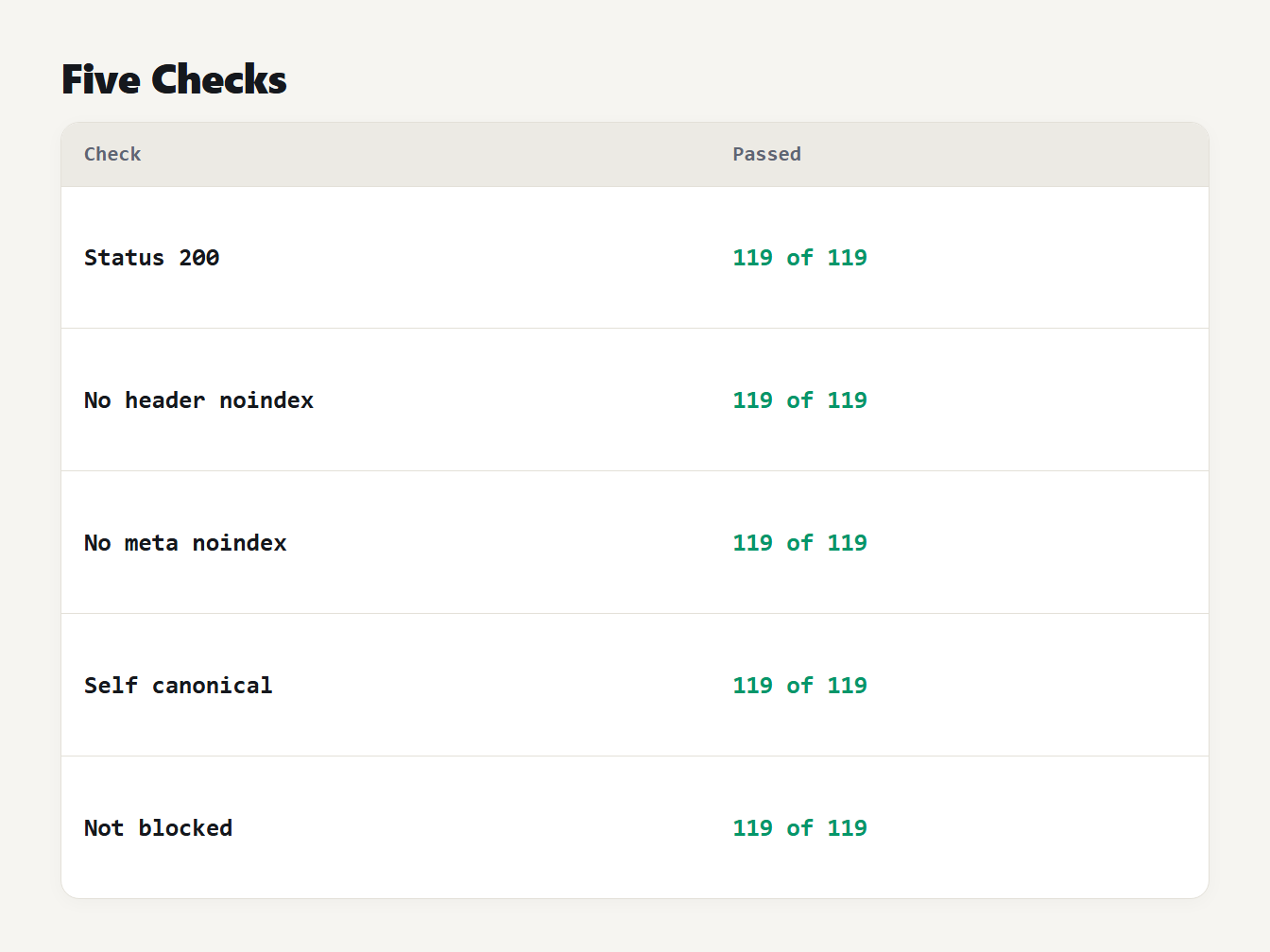
A table of five technical checks and how many of our 119 pages passed each. All 119 returned status 200, had no noindex in the header or the meta tag, had a canonical pointing to themselves and were not blocked in robots.txt.
Every page passed, and Search Console still listed 21 as not indexed. So a clean technical check does not decide the outcome. It only rules out the causes you control. If a page fails one of these, fix that first. Our guides to the X-Robots-Tag header and to testing robots.txt cover two of them. For a single page, this one line in the browser Console shows its canonical and robots tag:
({ canonical: document.querySelector('link[rel="canonical"]')?.href, robots: document.querySelector('meta[name="robots"]')?.content ?? null })
If every check passes and the page is still missing, the choice is Google's, and it does not publish a rule you can meet to force it. Requesting indexing asks Google to crawl the URL, and it does not promise that the page will be indexed.
A routine to check if a page is indexed
A short routine keeps this from becoming guesswork.
- Inspect the exact canonical address. The tool wants the full URL, and a redirect shows the result for the address you typed, not for where it lands. The URL Parser shows the scheme, host and path of an address, so you can confirm that you typed the same version your canonical uses.
- Run the five technical checks from the table above and fix any that fail.
- List only pages you want indexed in the sitemap. The XML Sitemap Generator builds the file from clean addresses.
- Look again after a few days rather than the same hour, because the indexed copy changes only when Google crawls the page again.
Limits
We read one property in Search Console on 11 October 2026 and inspected one page by hand. The 119-page audit tests what our server sends, not what Google decided, and a page that passes can still be left out. Google's Page indexing report did not account for all 119 of our addresses, so we cannot say why the other 53 were absent from it. These numbers will have changed by the time you read this.
Frequently asked questions
How do I check if a page is indexed on Google?
Inspect the address in the URL Inspection tool in Search Console. It reports whether the URL is on Google and shows details from the most recently indexed version. You need to own the property that contains the page.
Does the site: operator show every indexed page?
No. Google says a site: query does not necessarily return all the URLs that are indexed under a prefix, and the list is not always exhaustive. Use it for a quick look, and use Search Console for counts.
What does URL is on Google mean?
It means the URL is eligible to appear in Google Search results, not that it will appear. Google says the report does not check every condition for appearing, and the definitive test is to search for the page URL.
Why is my page not indexed when nothing blocks it?
Being allowed in is not the same as being chosen. All 119 of our pages passed five technical checks, yet Search Console listed 21 as not indexed. Google decides what to index, and a new site may wait.
Is the live test the same as the indexed version?
No. The live test fetches the page now and can differ from the indexed copy if you changed something, such as removing a noindex tag. It also cannot tell you whether the page would be chosen as the canonical.
Check your own pages
Use the Robots.txt Tester to confirm a page is not blocked, and the Meta Tag Generator to write a clean canonical tag. Everything runs in your browser, so nothing you type is uploaded.